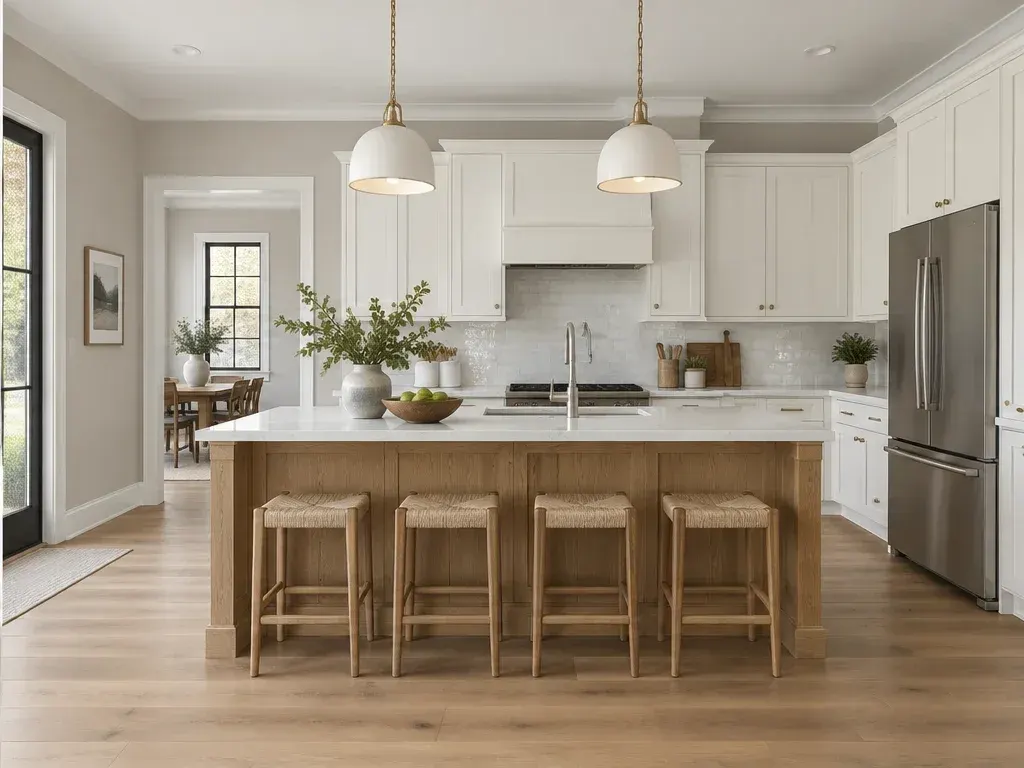
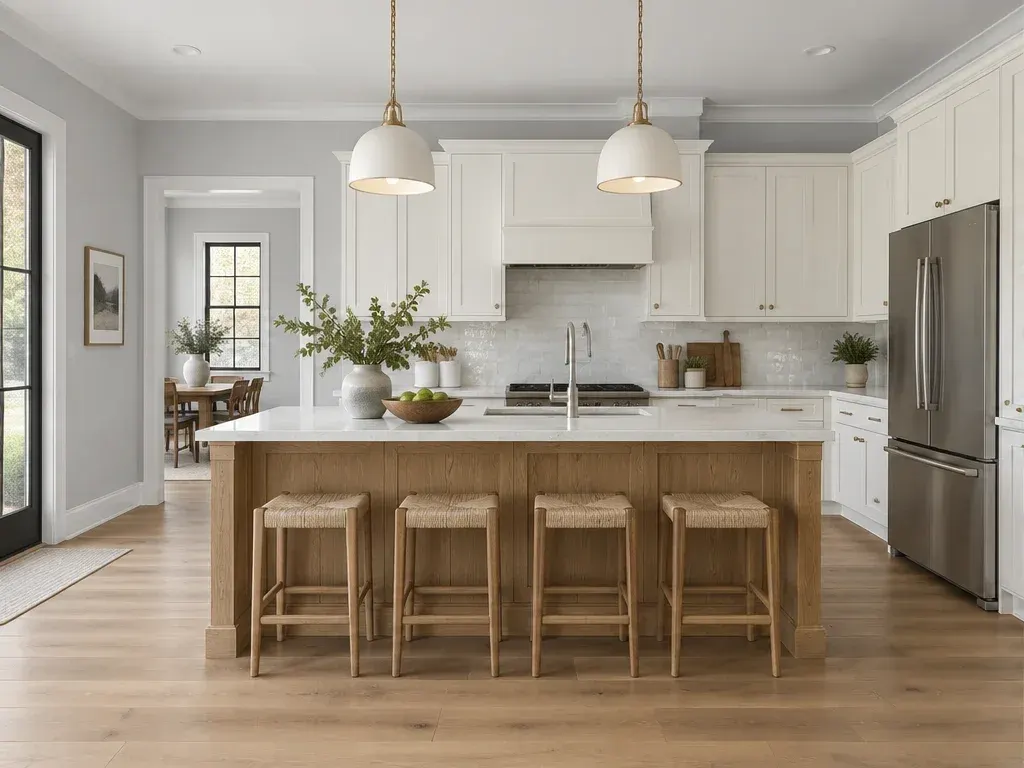
↔
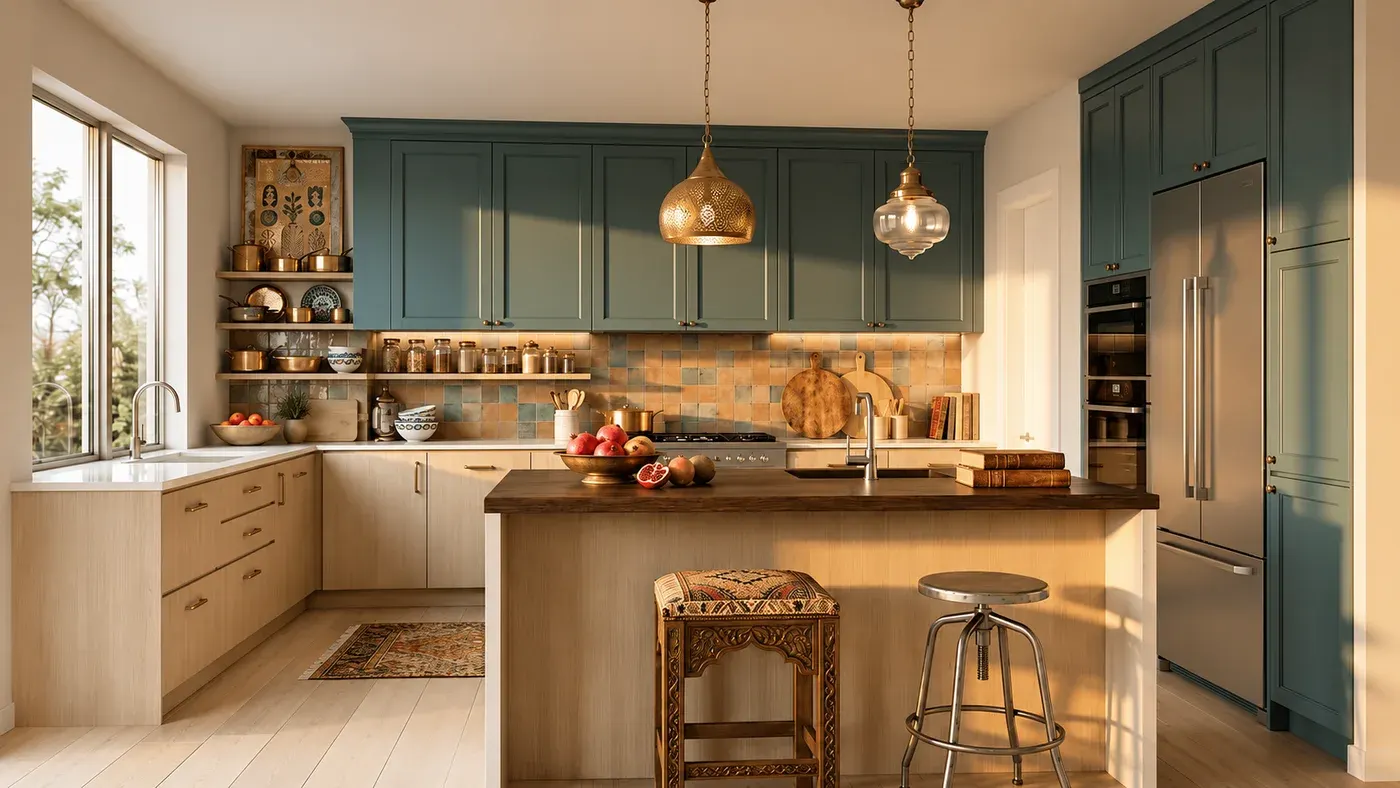
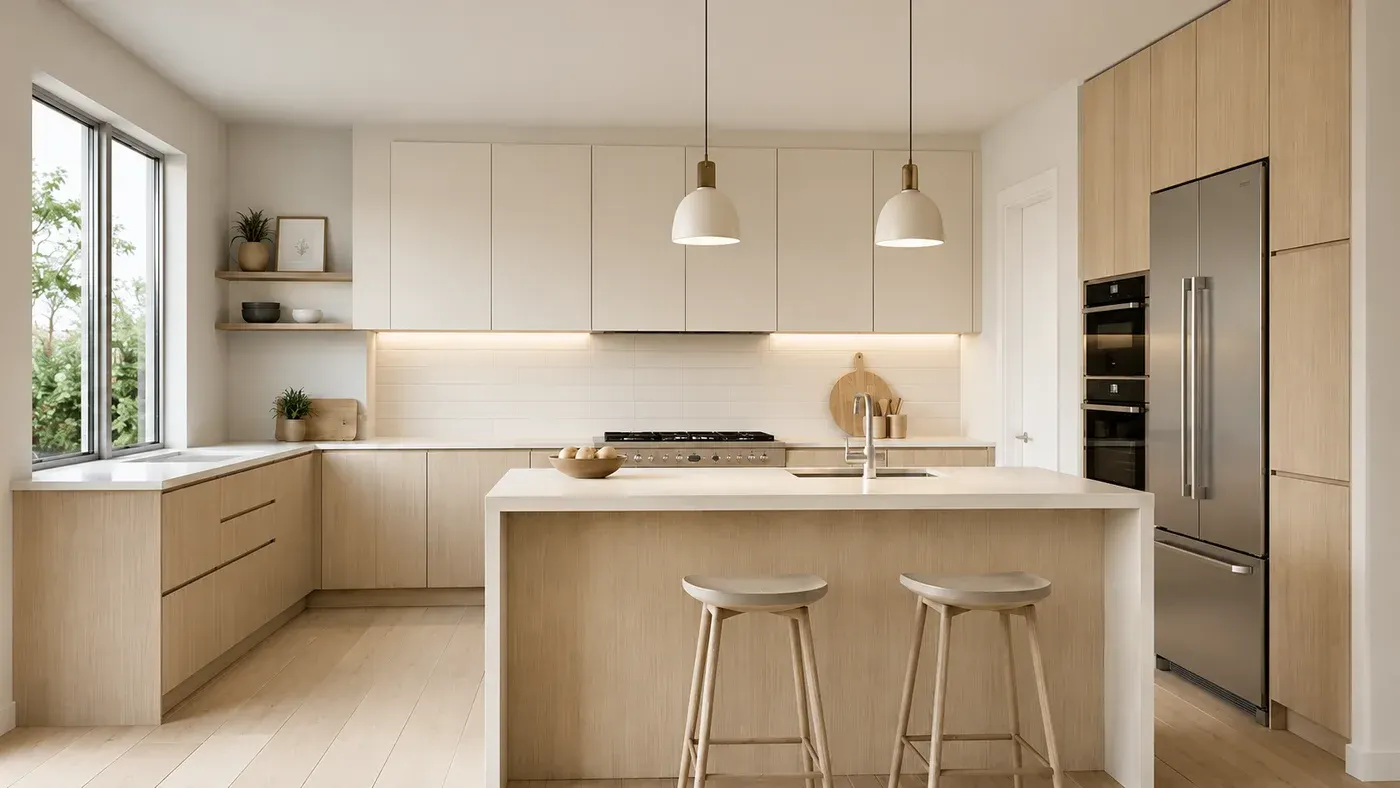
See how new cabinets, counters and finishes could work together in your kitchen. Start with a photo, describe your preferences and compare a visual remodel before choosing materials.
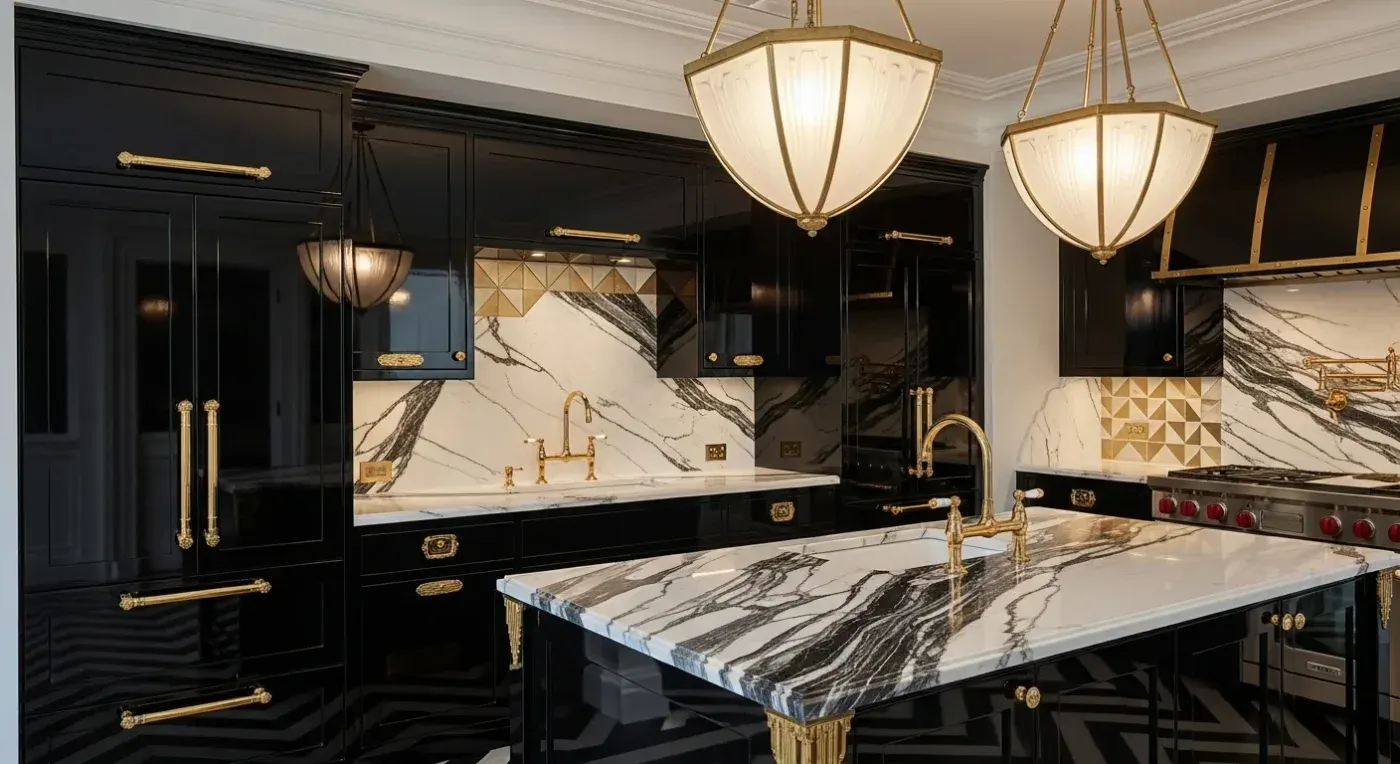
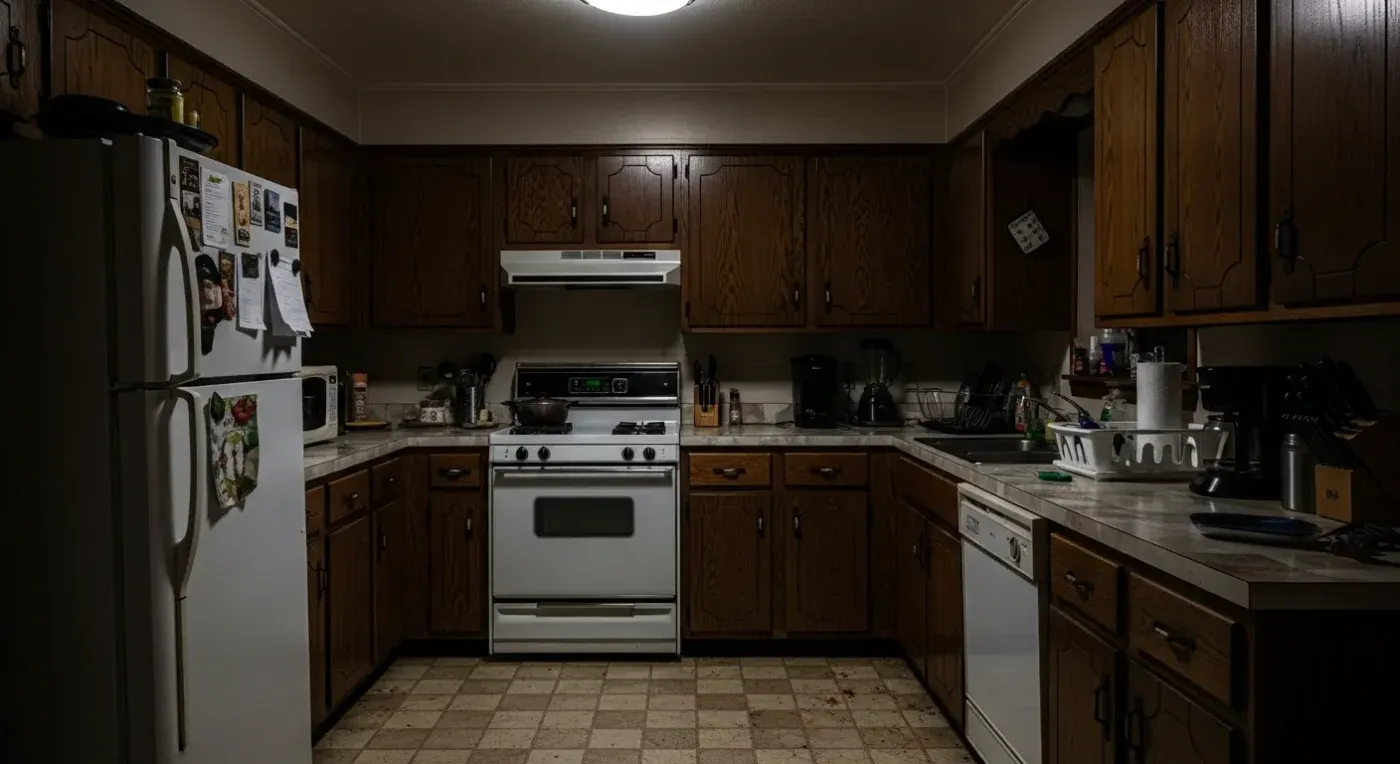
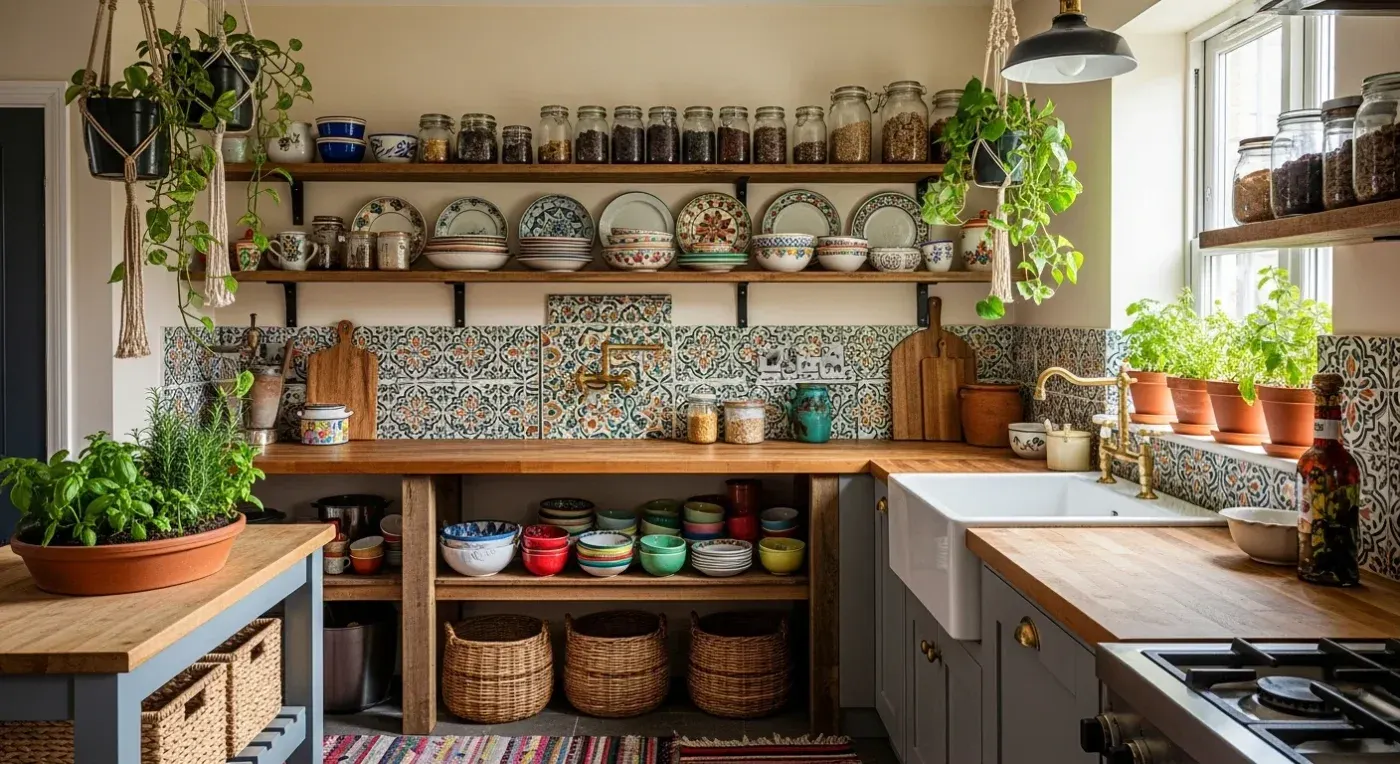
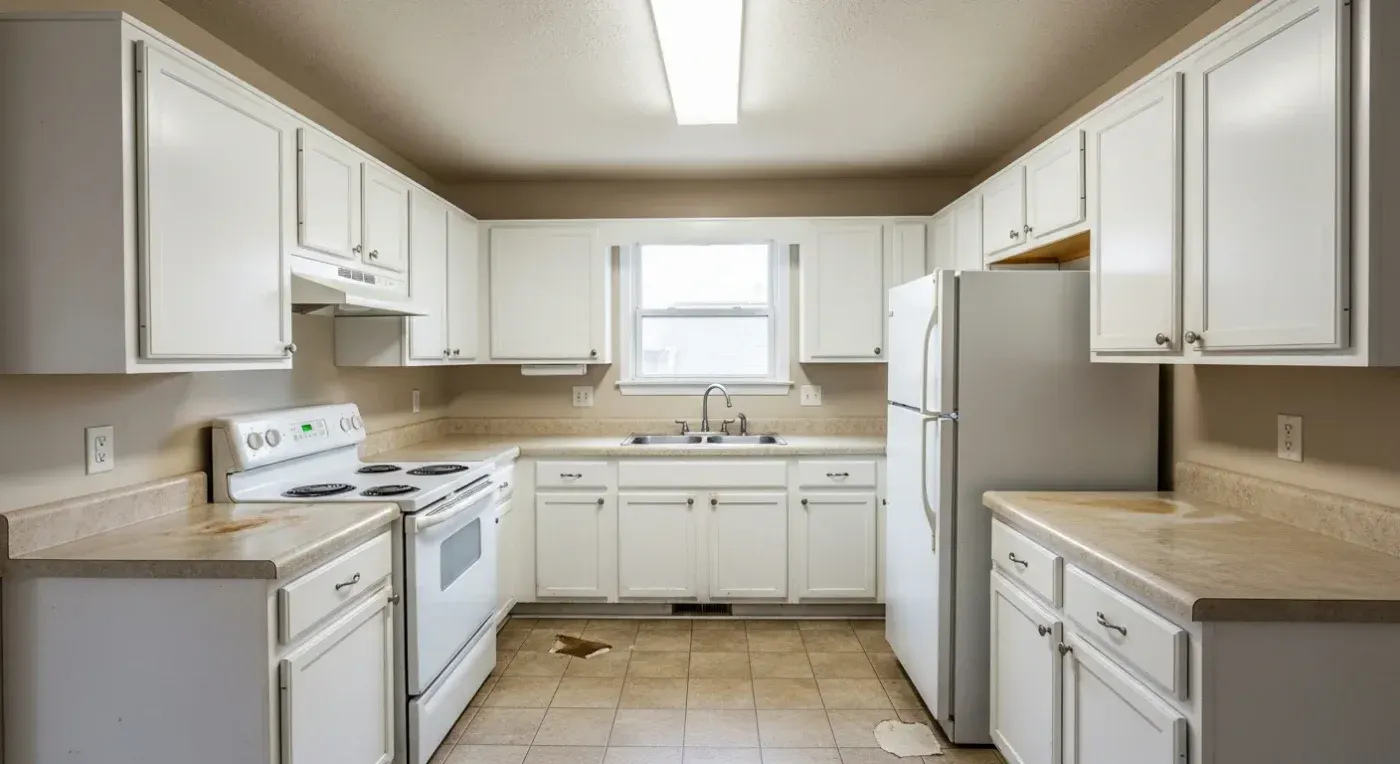
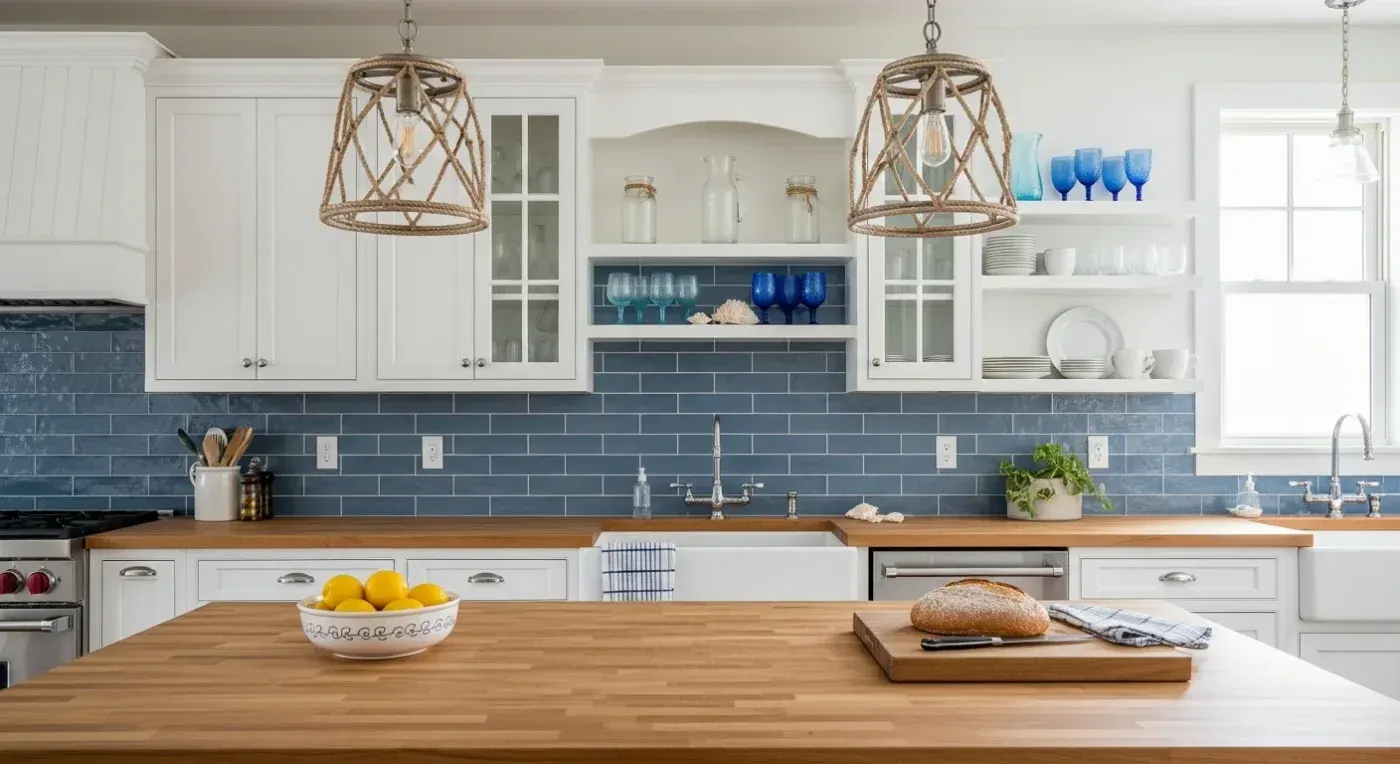
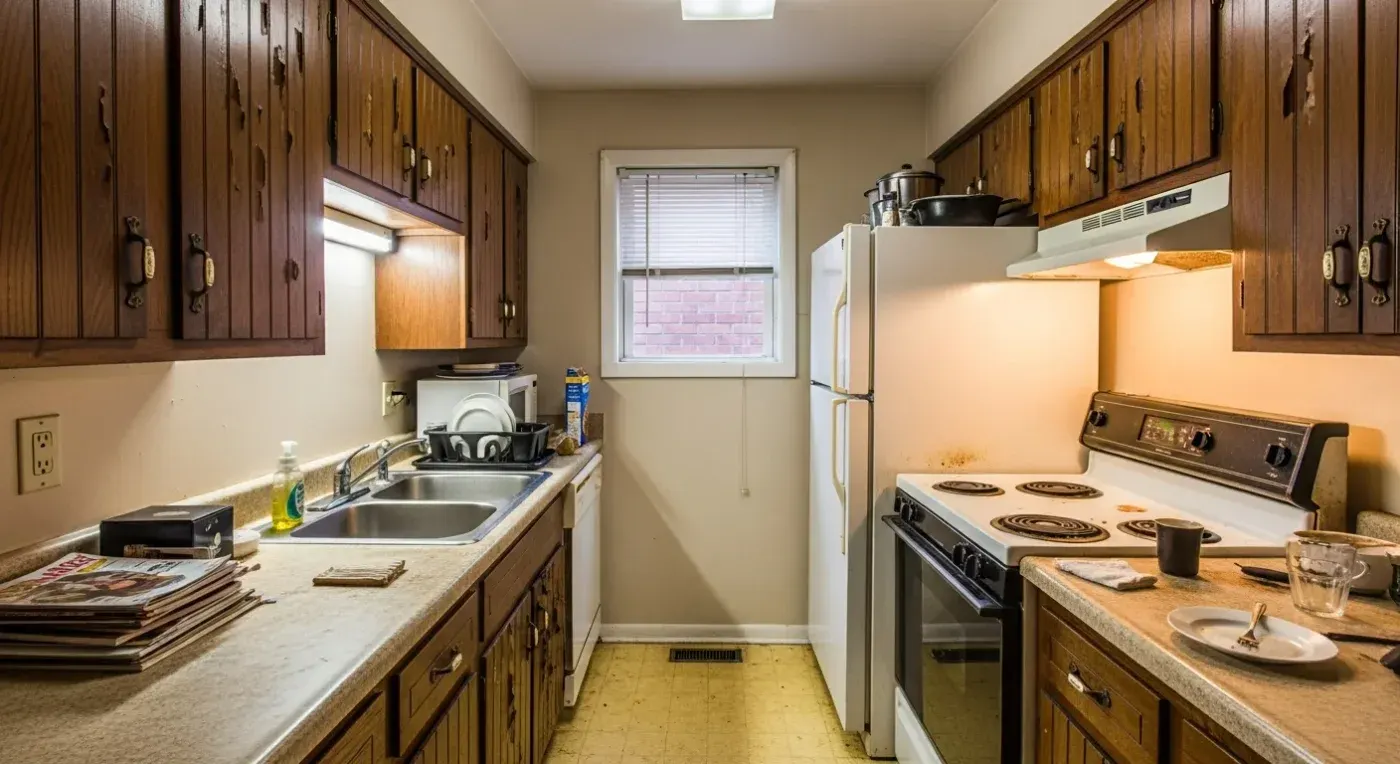
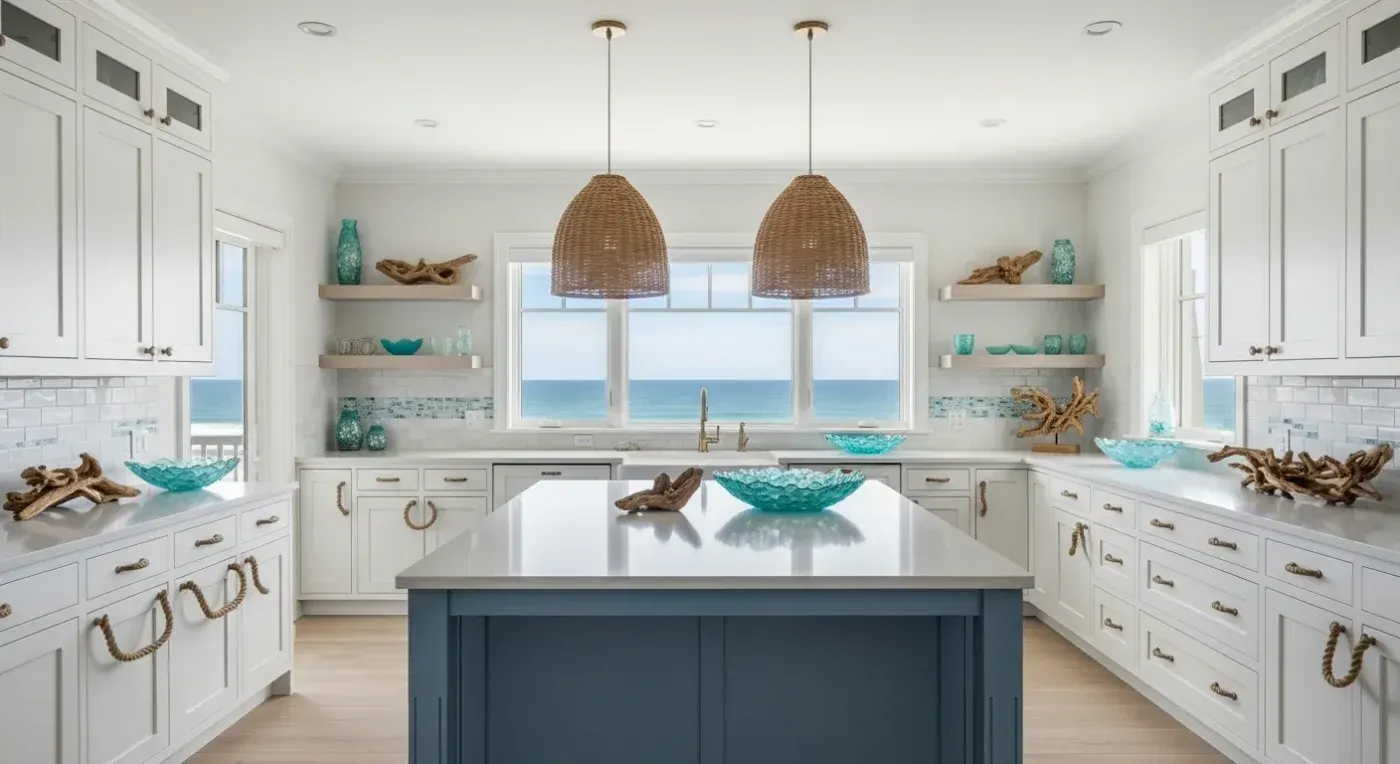
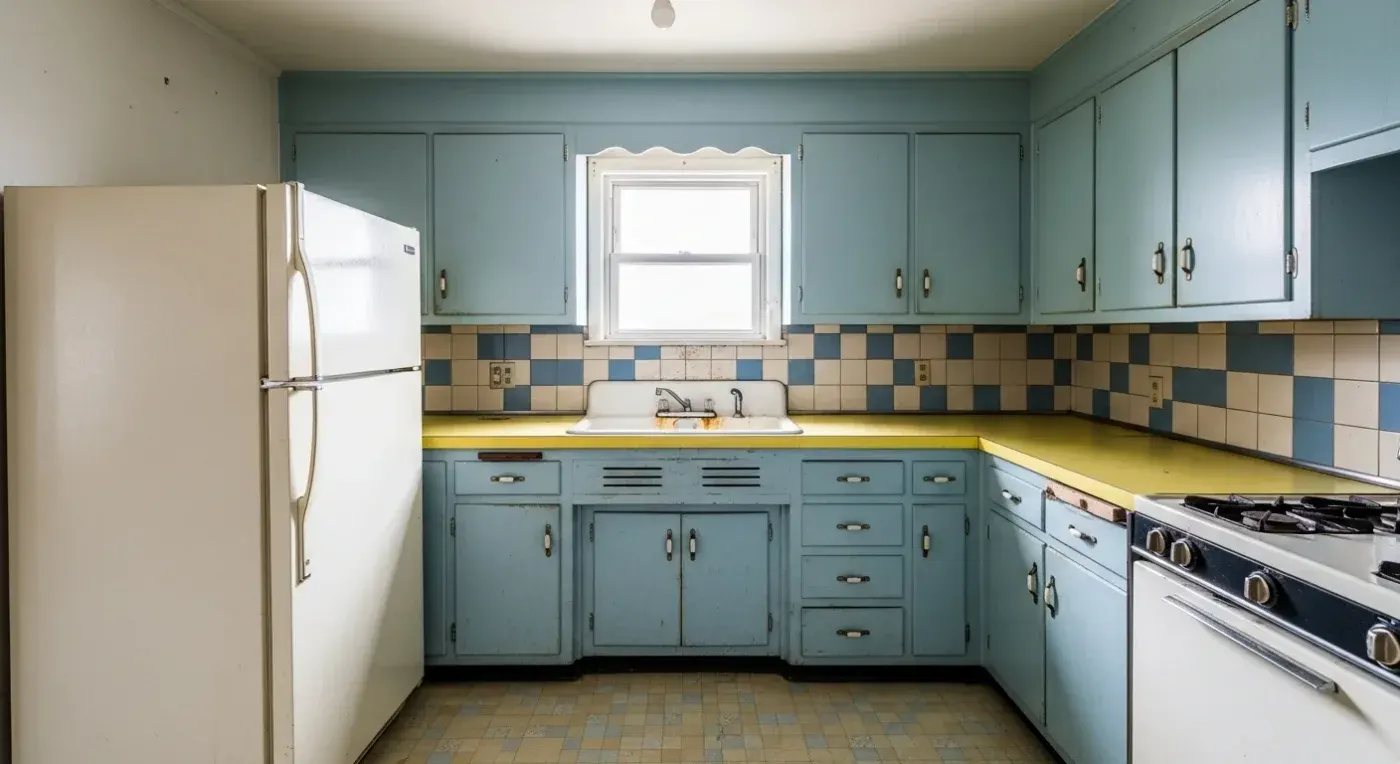
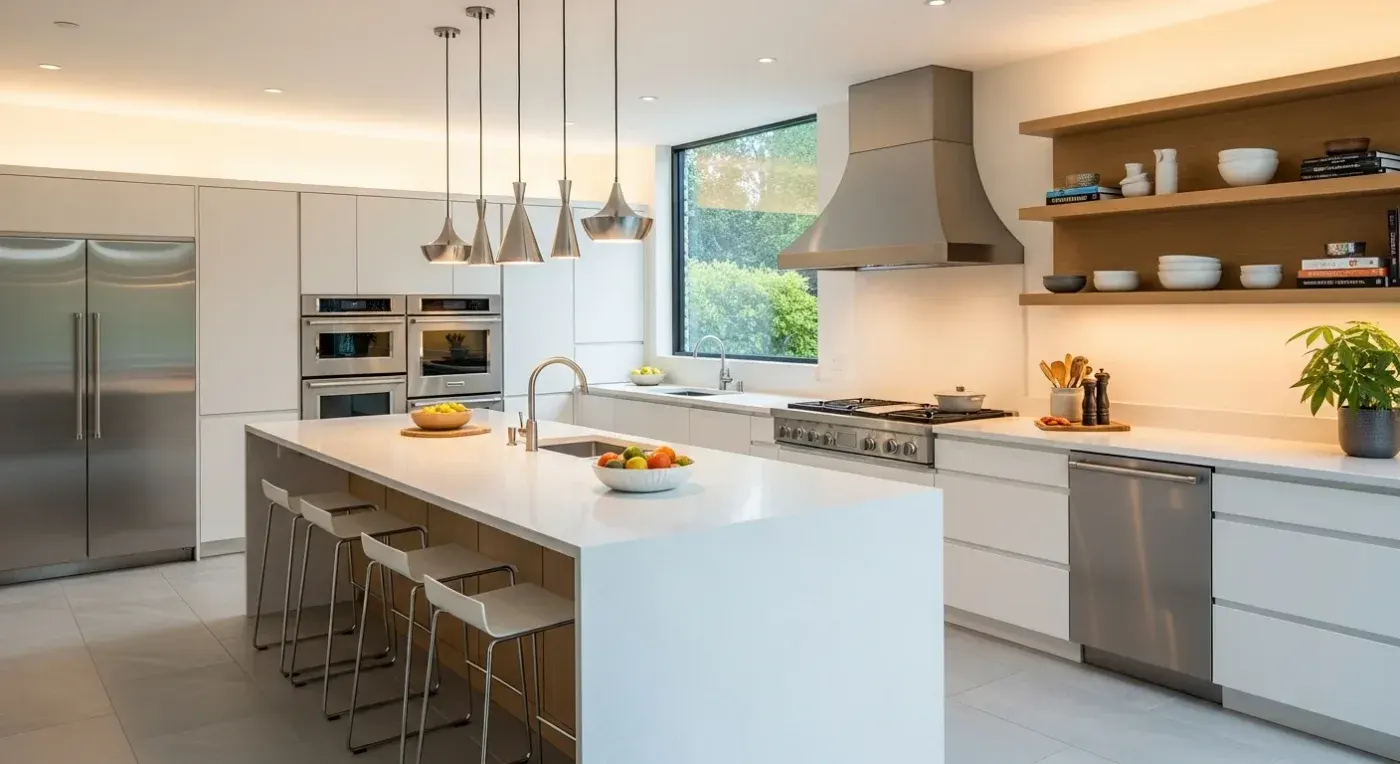
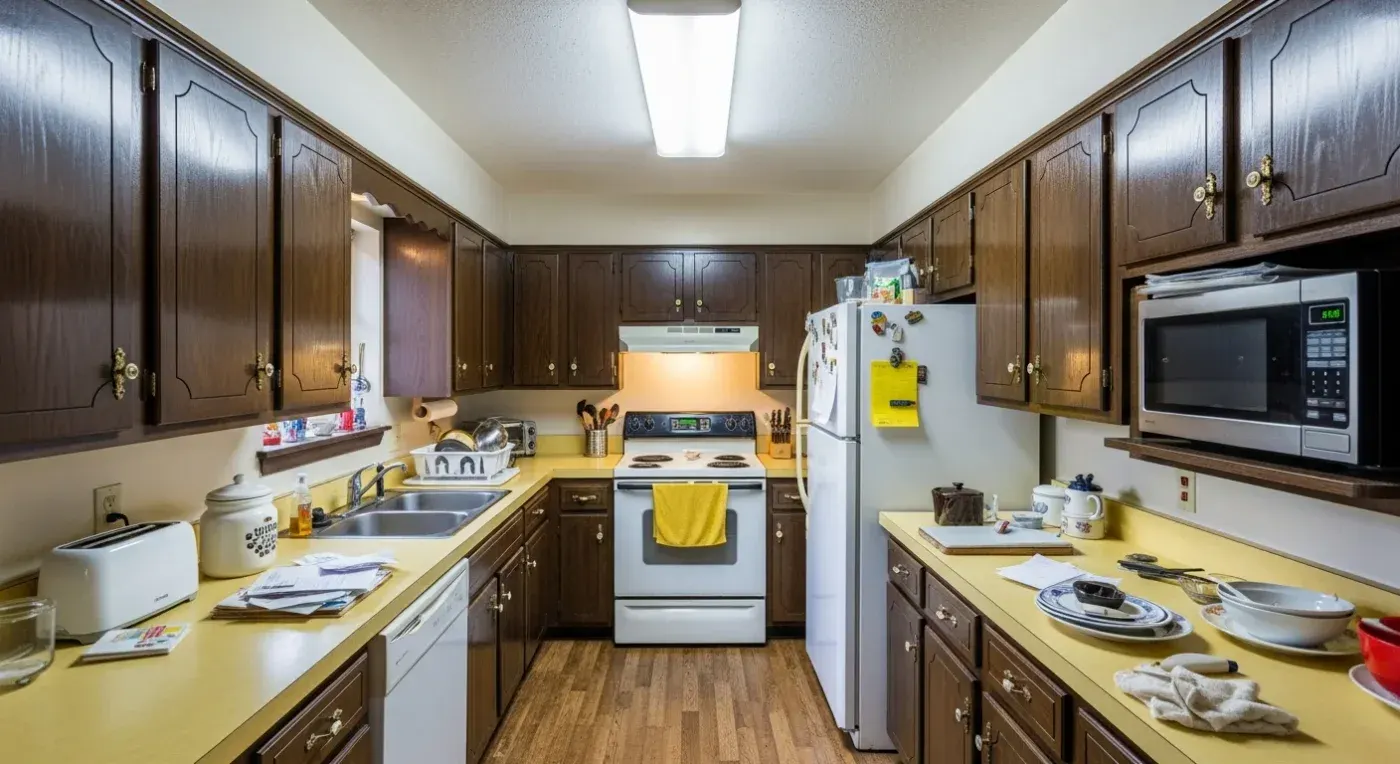
1–6 / 8
Upload your kitchen, describe the finishes you want, and compare the design before you choose materials.
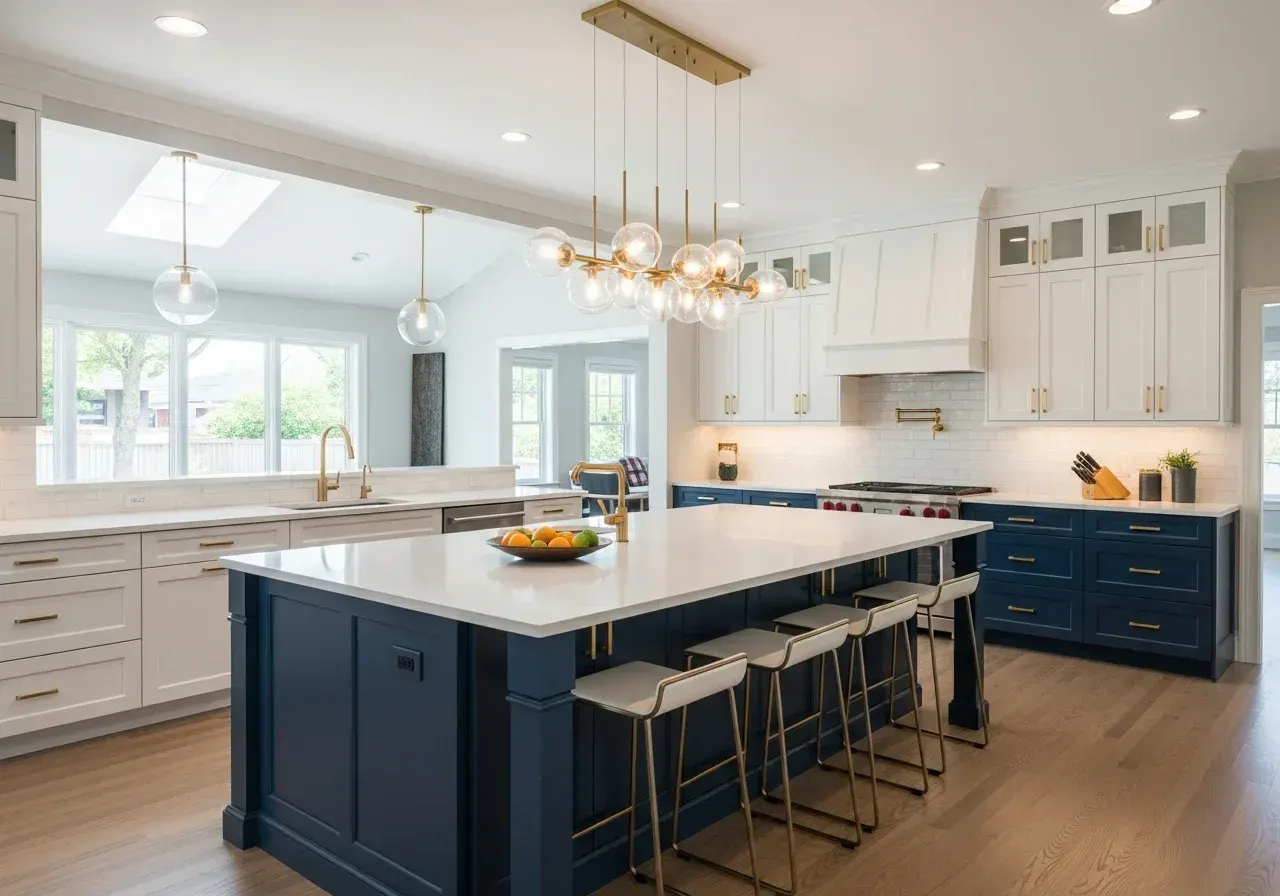
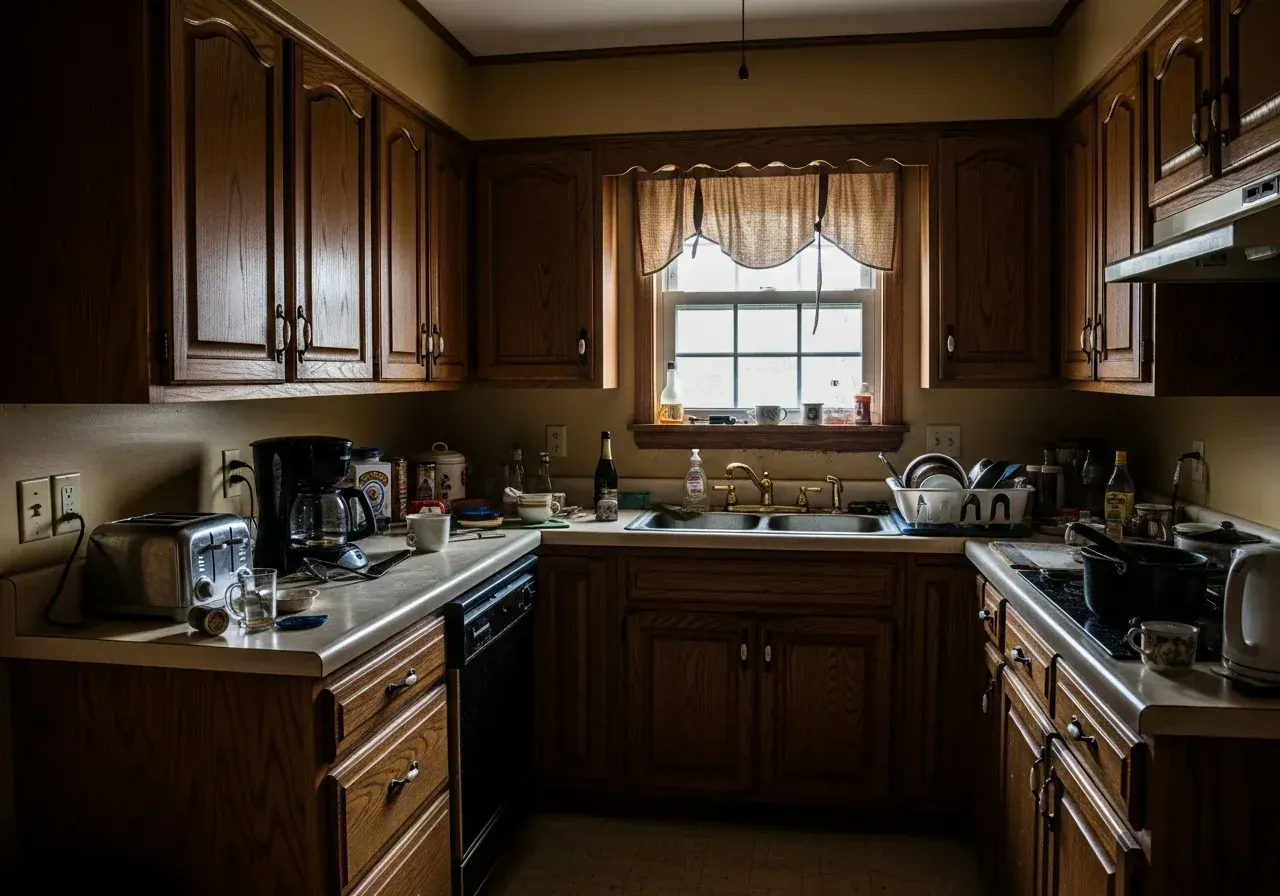
Upload a kitchen photo showing the cabinets, worktop, walls and existing layout.
For example: warm oak cabinets, a pale stone worktop and a brighter backsplash.
Choose image quality and the number of designs. Review the credit estimate before generating your concept.
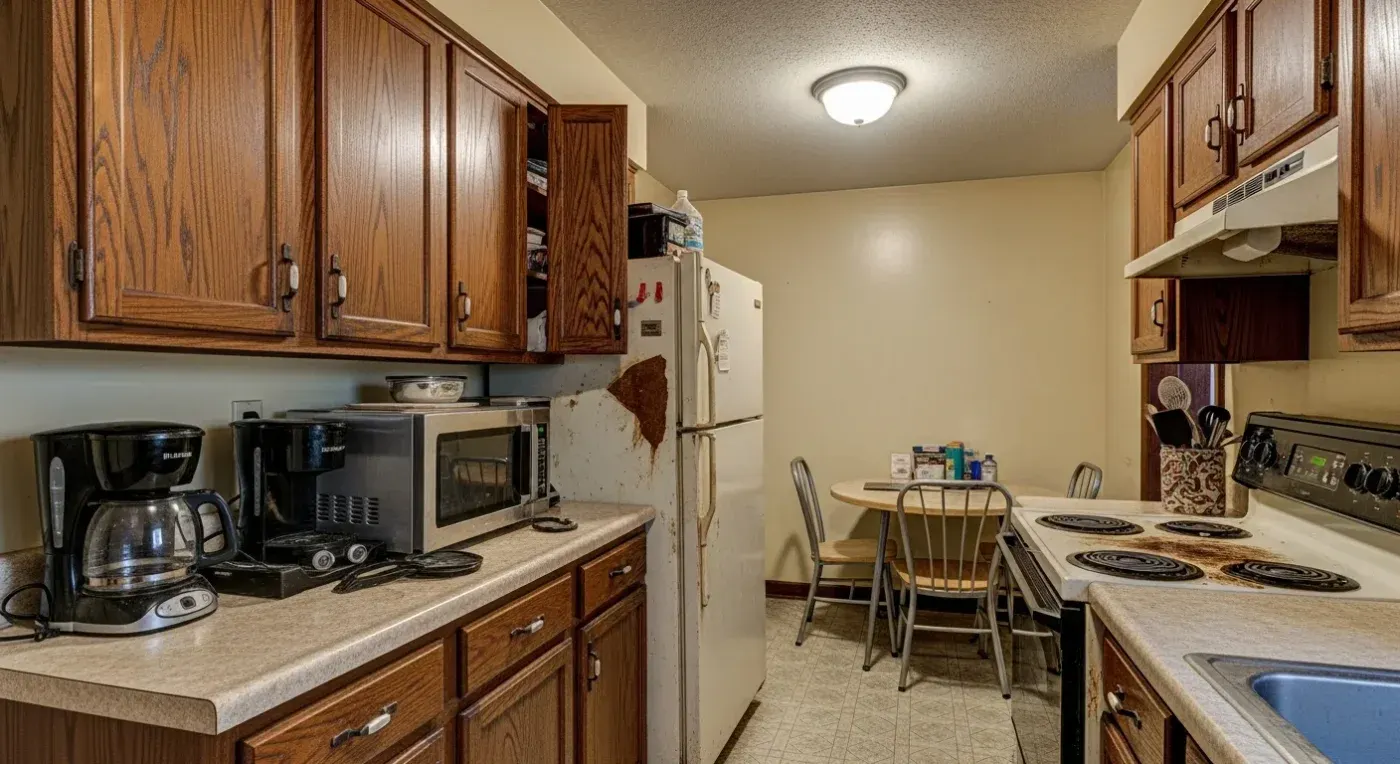
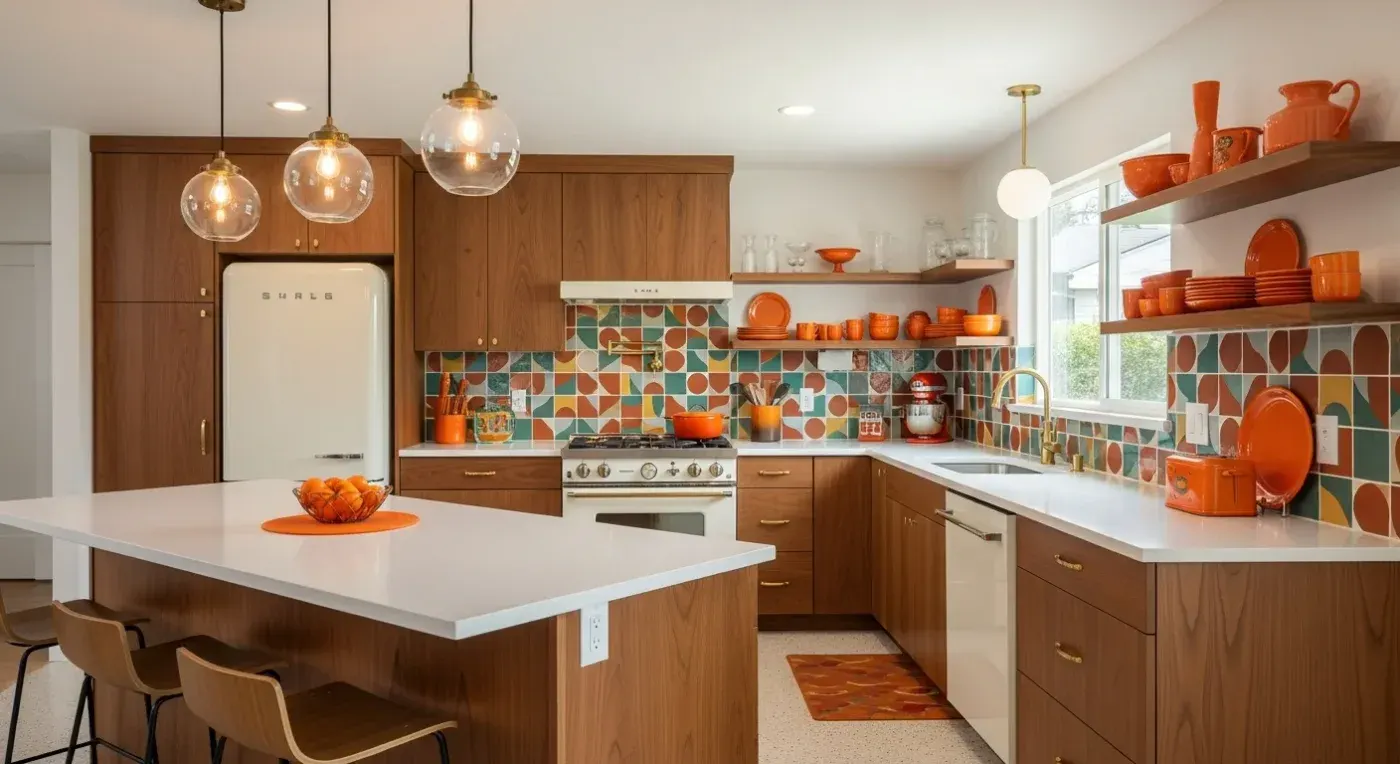
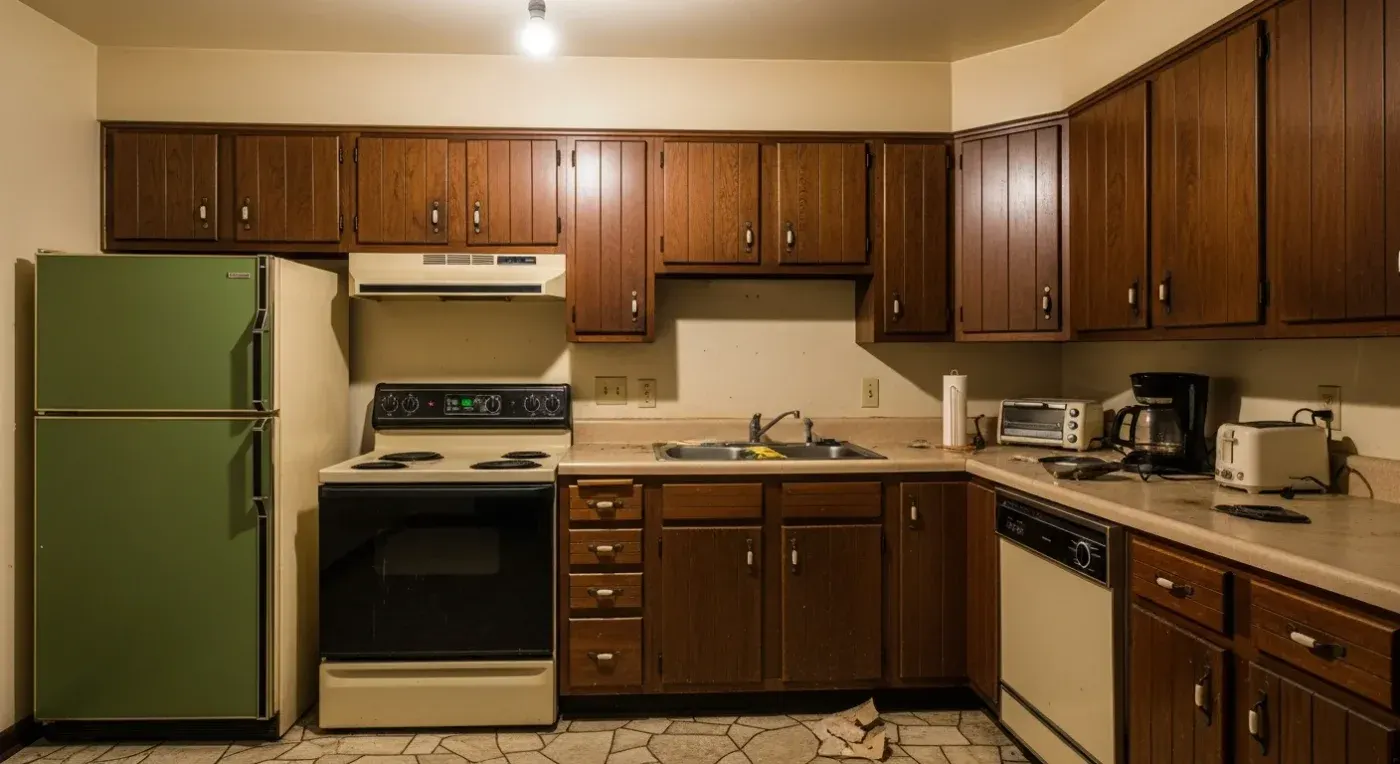
Compare the original photo with the new design
Explore kitchen finishes, cabinetry appearance and coordinated decor from an existing kitchen photo. Pick a style and describe the surfaces or features you want to retain. The image does not verify plumbing, electrical work or appliance installation sizes.
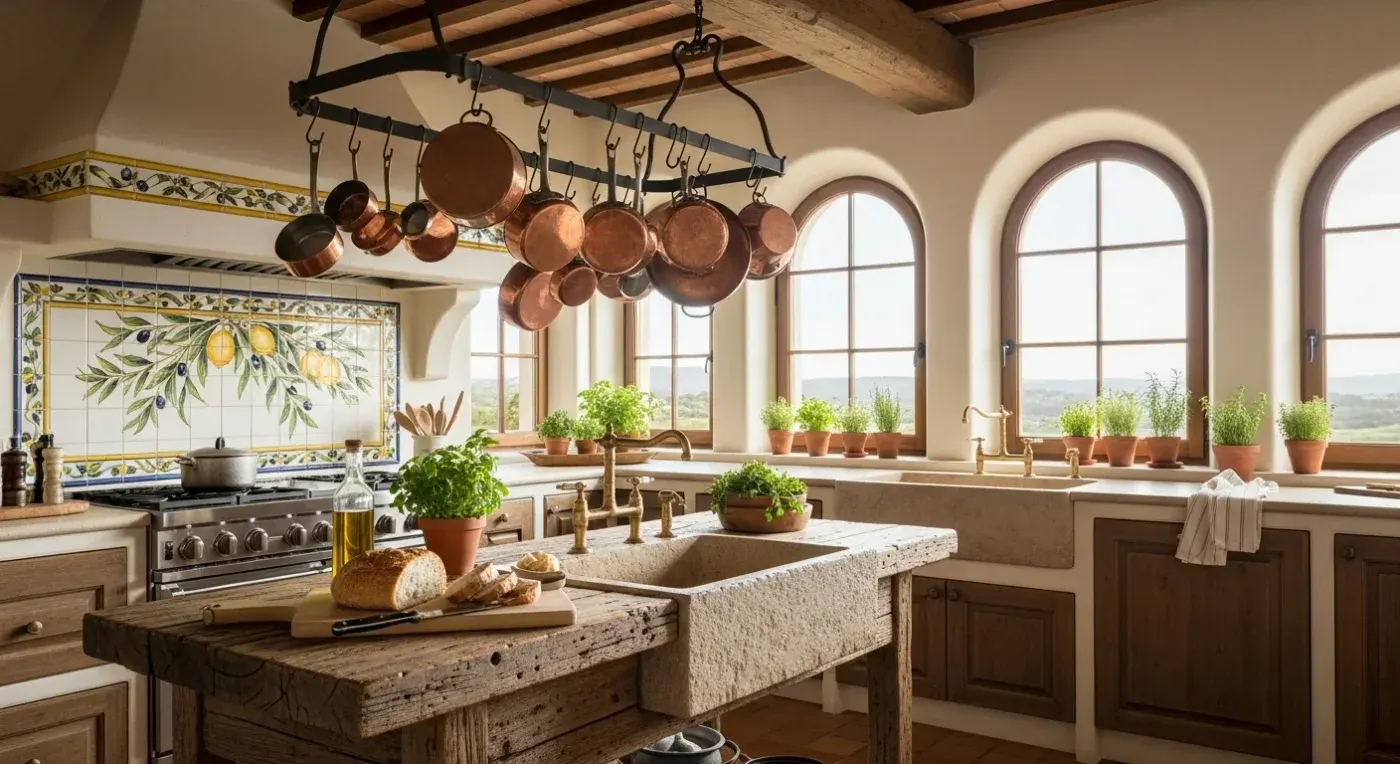
Compare light wood, deeper tones or painted cabinets in your kitchen photo, keeping the surrounding floor and lighting in view.
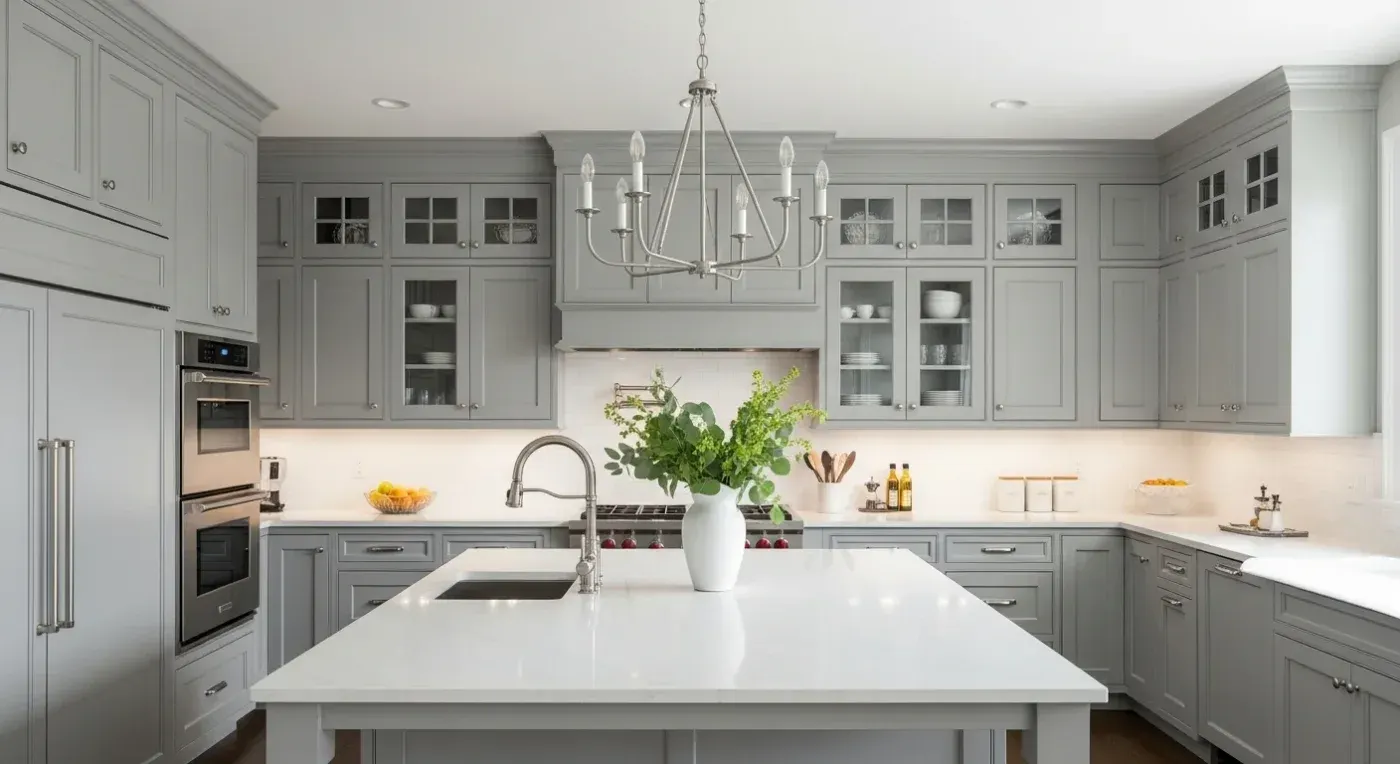
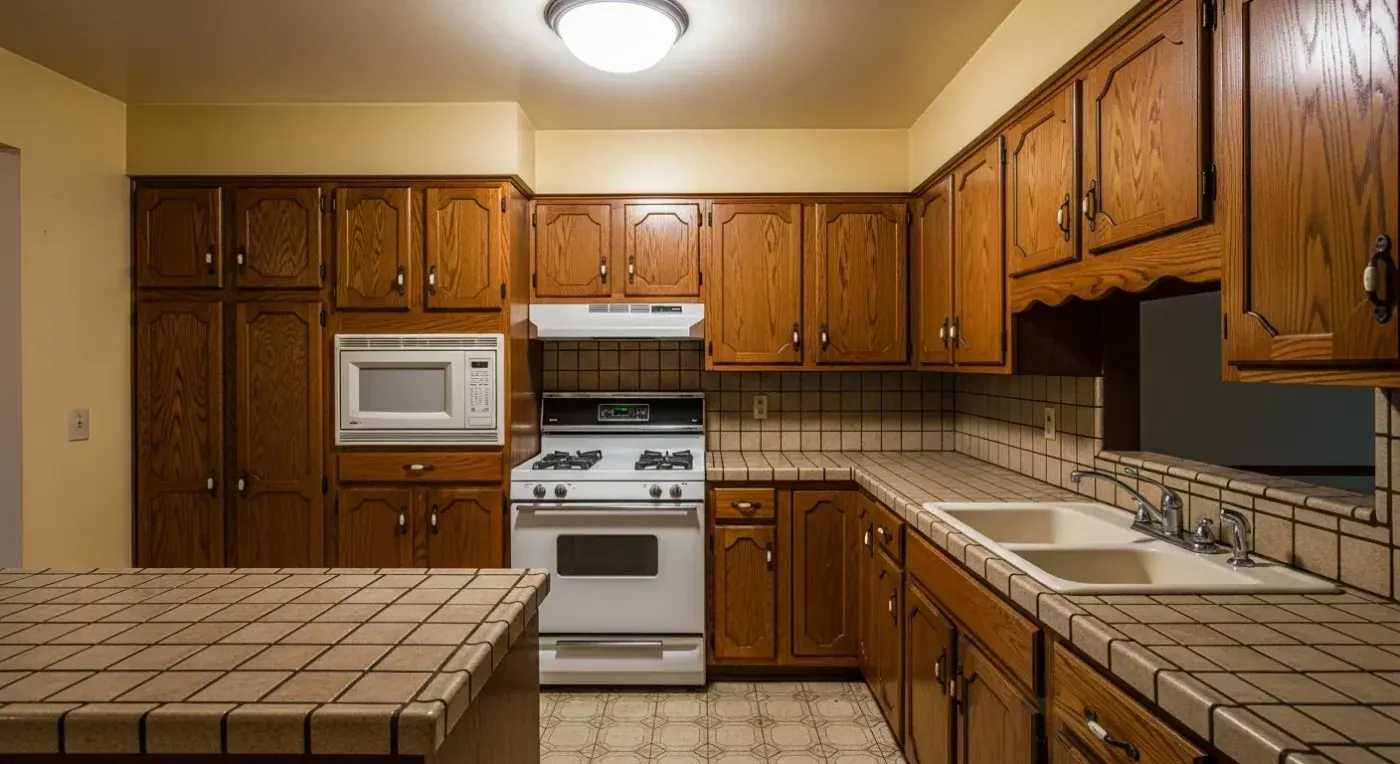
Explore combinations of worktop, tile and cabinetry as one room, so material choices support the kitchen’s overall mood.
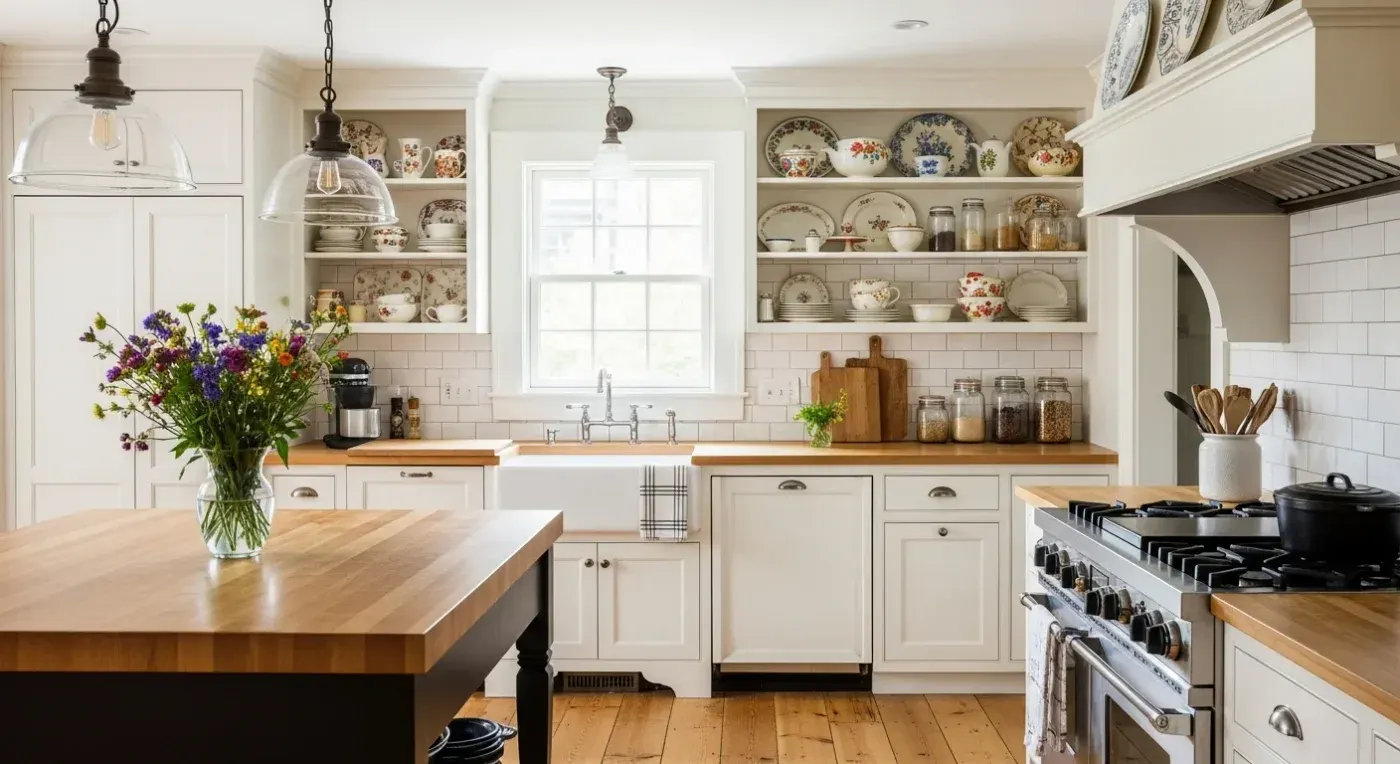
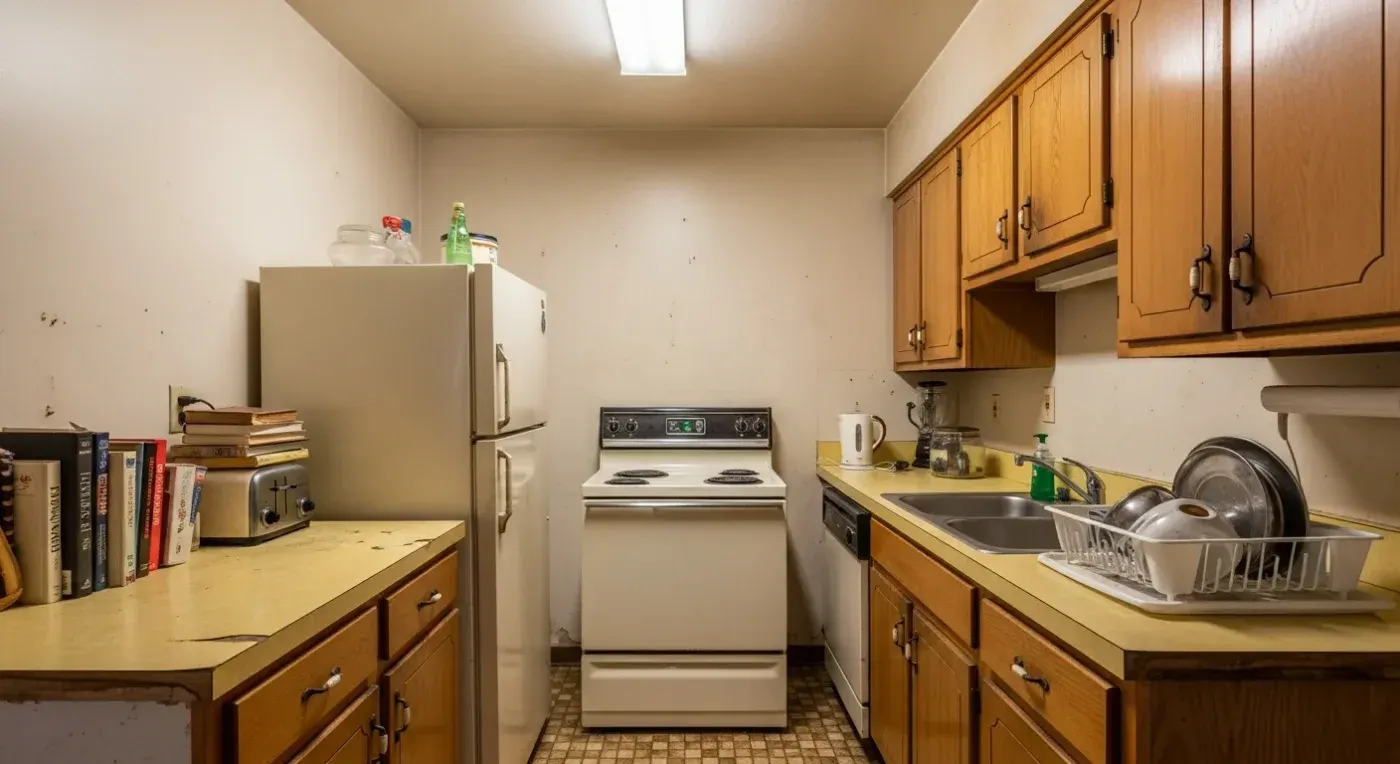
Try a different lighting atmosphere and finish palette to see how the room could feel before selecting fixtures or surface materials.
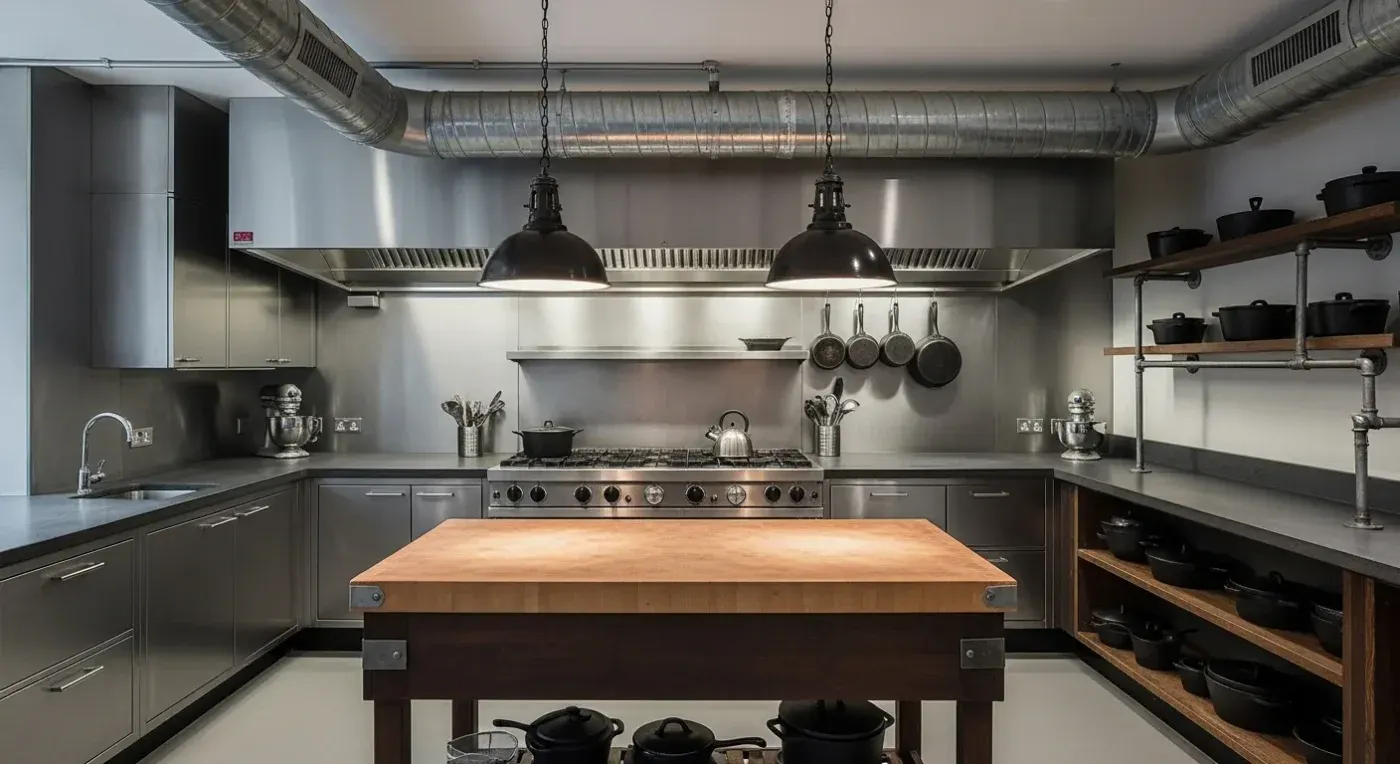
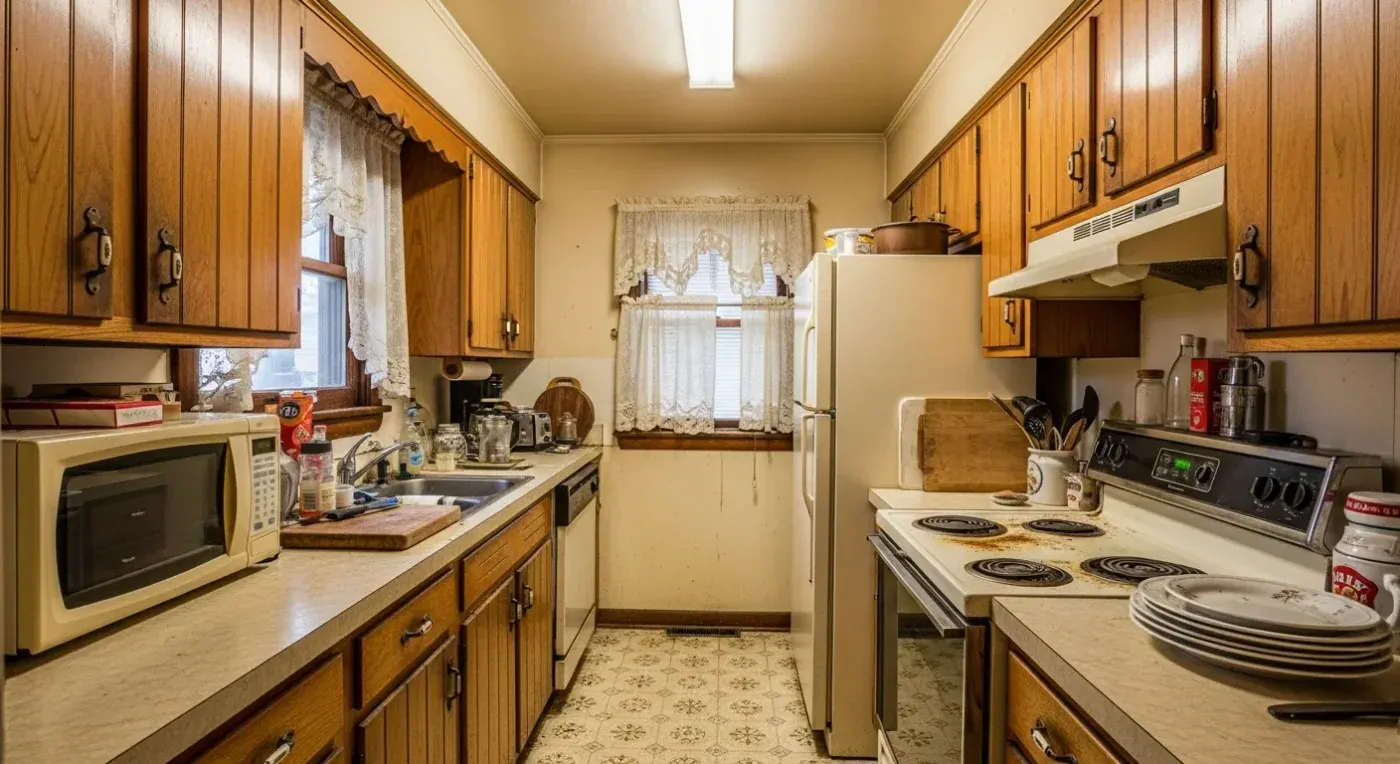
Download a kitchen preview and discuss the changes you like with a designer or installer, alongside actual measurements and a practical budget.
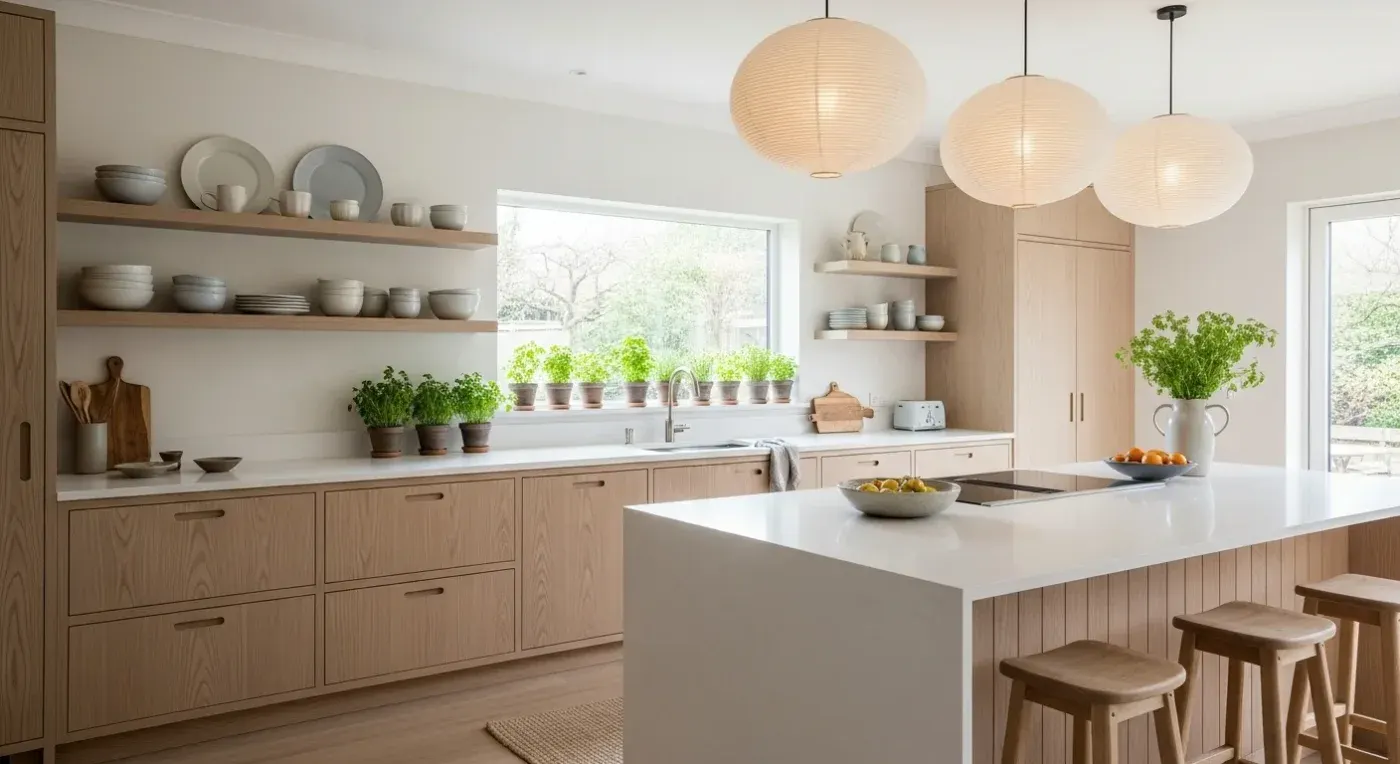
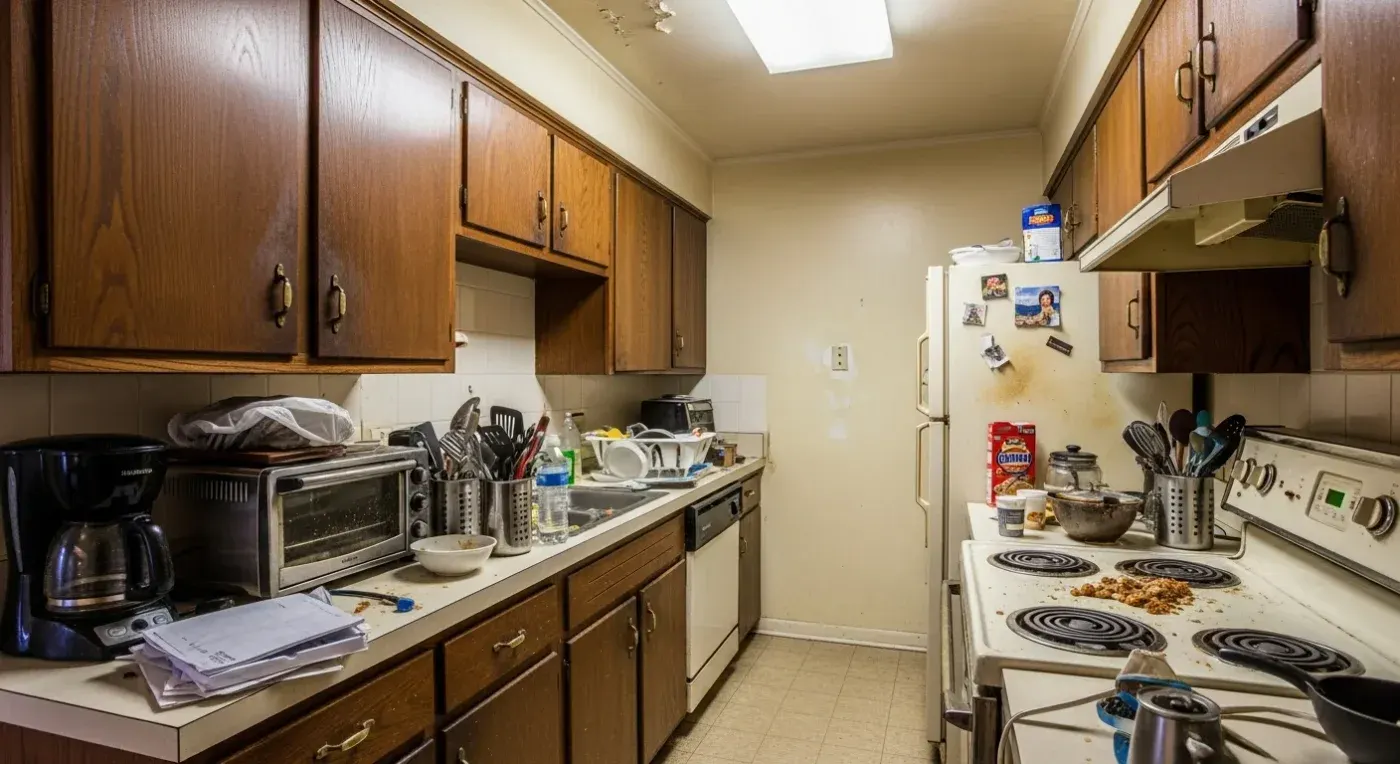
Upload a kitchen photo showing the cabinets, worktop, walls and existing layout.
Compare light wood, deeper tones or painted cabinets in your kitchen photo, keeping the surrounding floor and lighting in view.
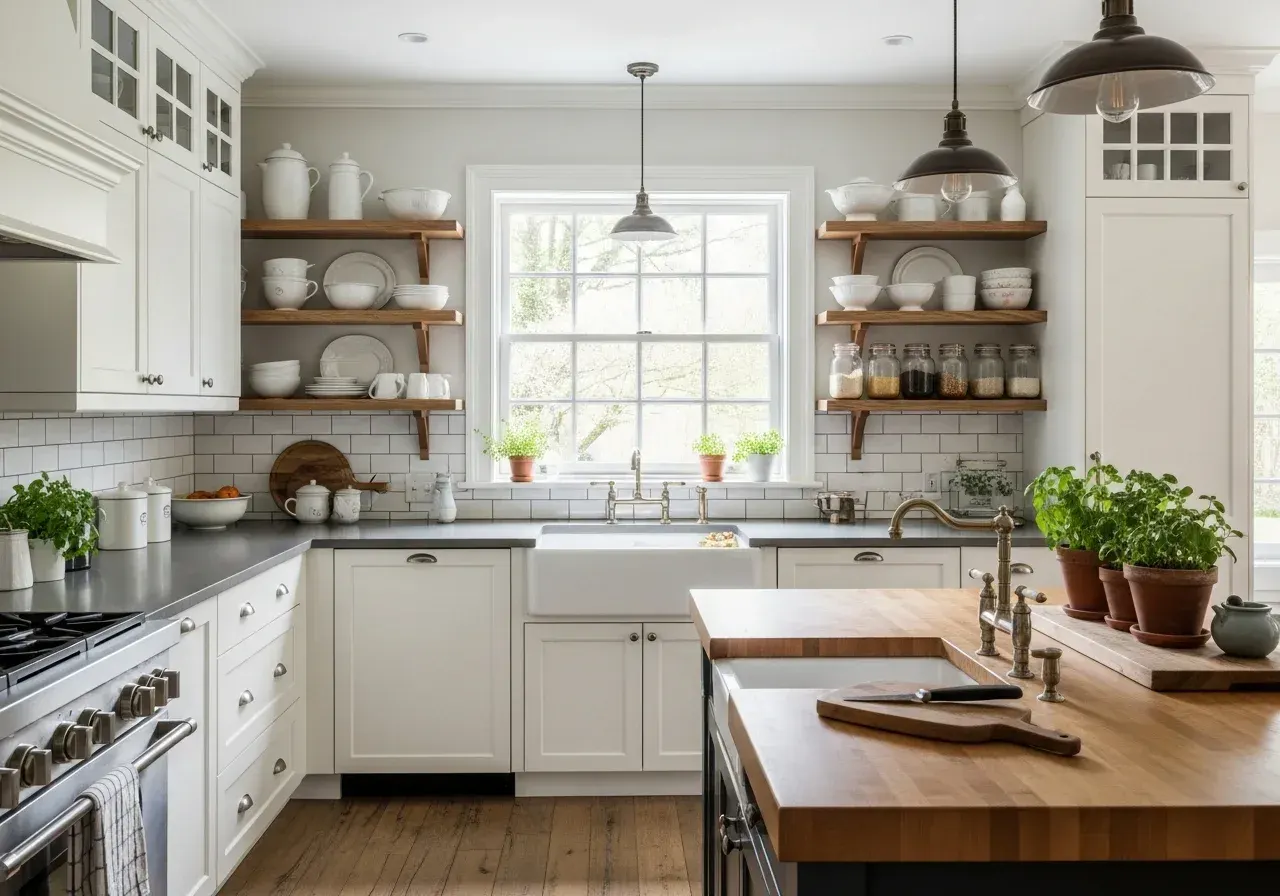
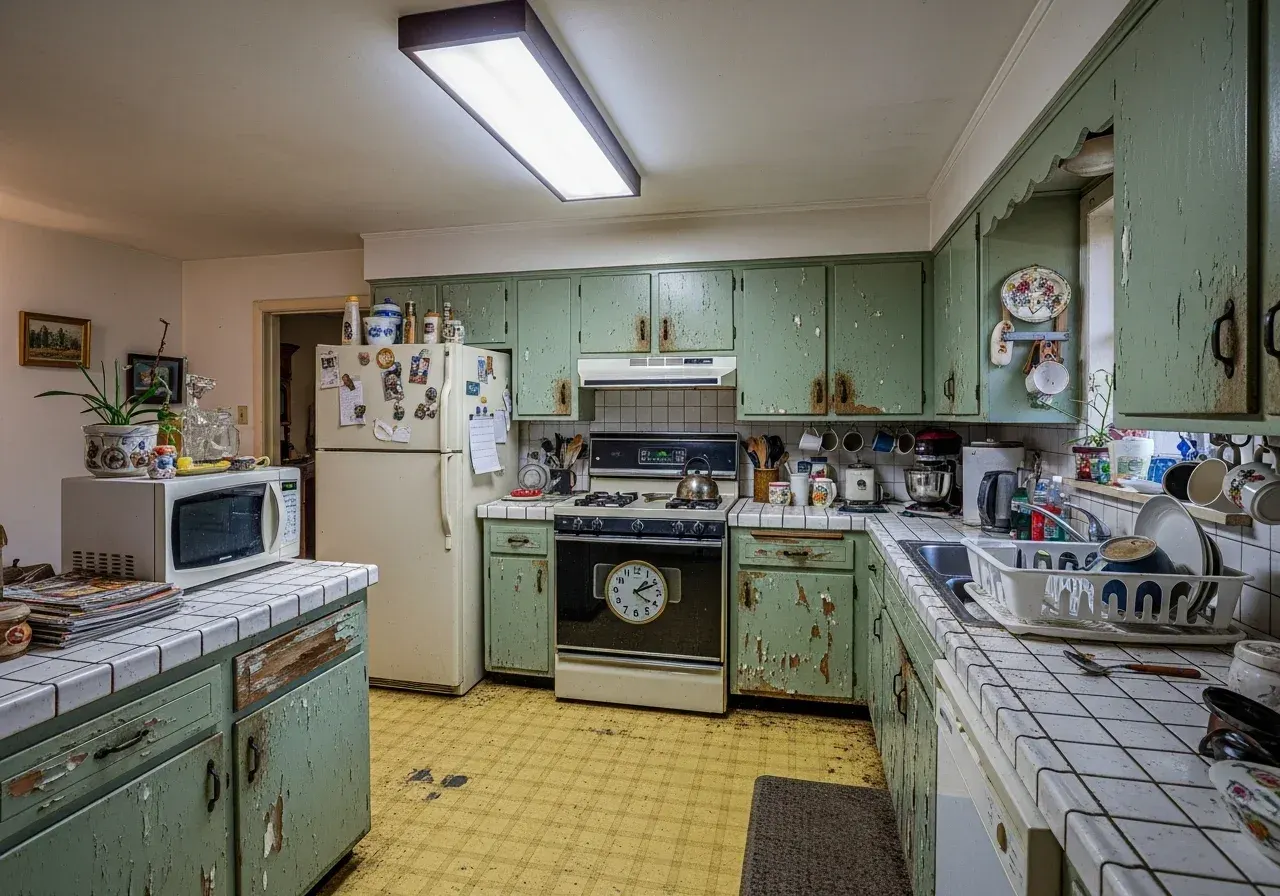
Explore combinations of worktop, tile and cabinetry as one room, so material choices support the kitchen’s overall mood.
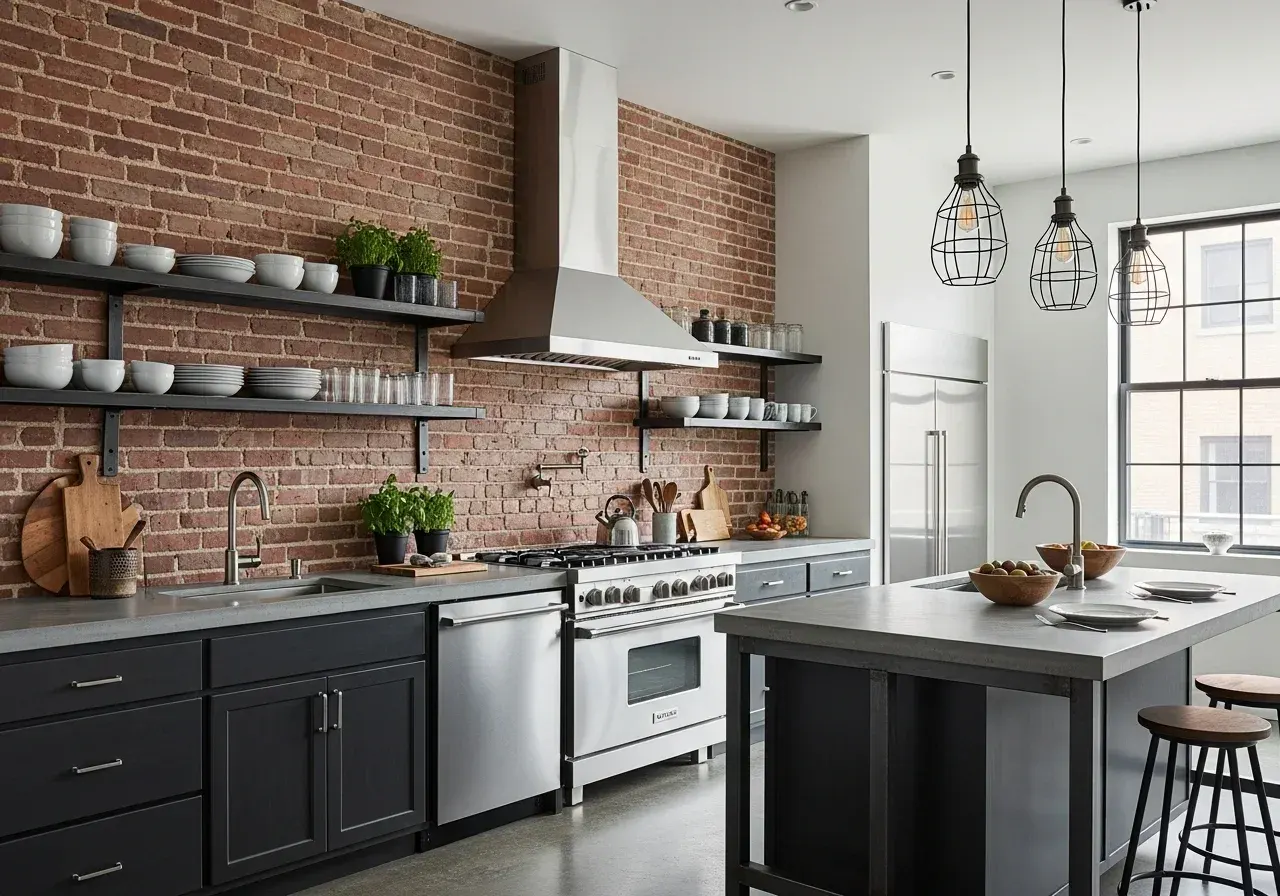
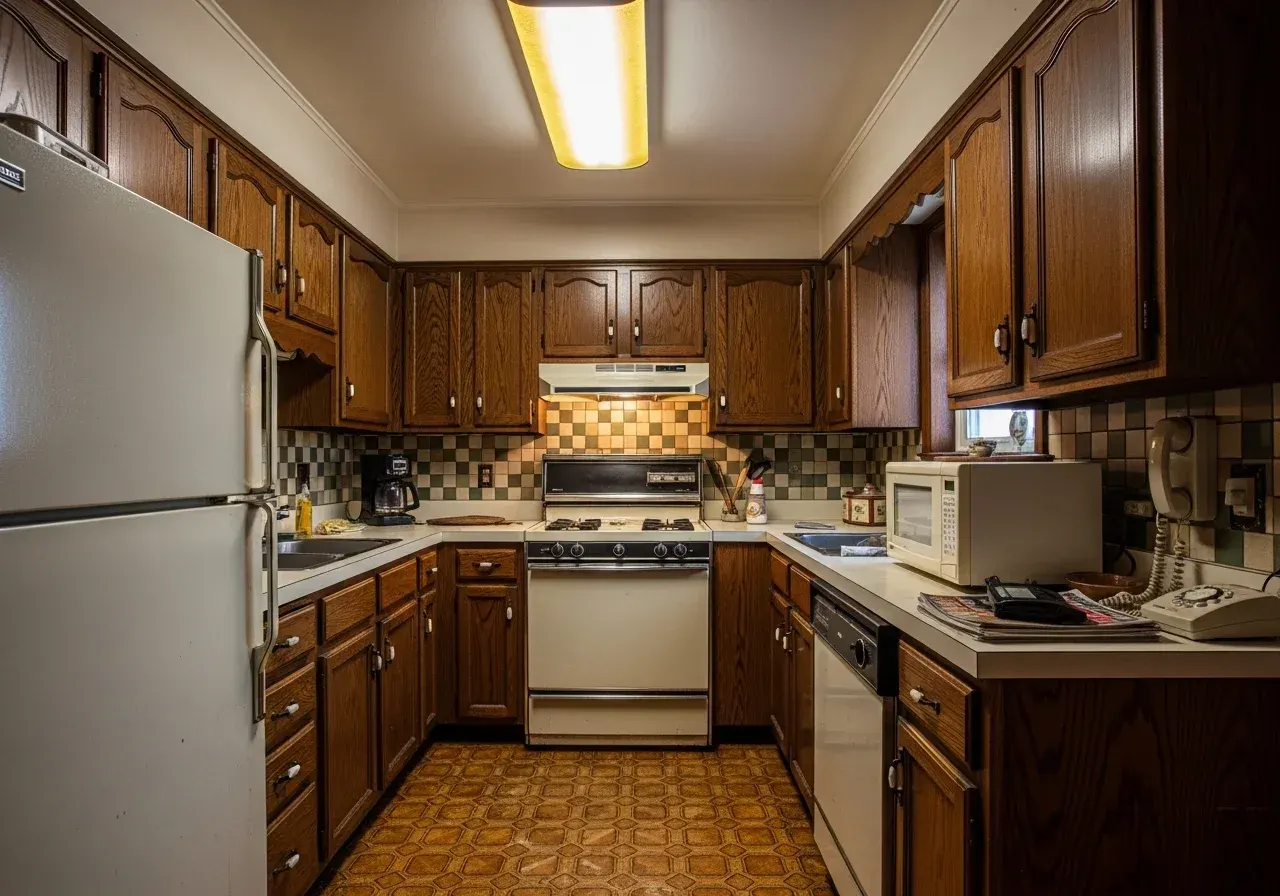
Try a different lighting atmosphere and finish palette to see how the room could feel before selecting fixtures or surface materials.
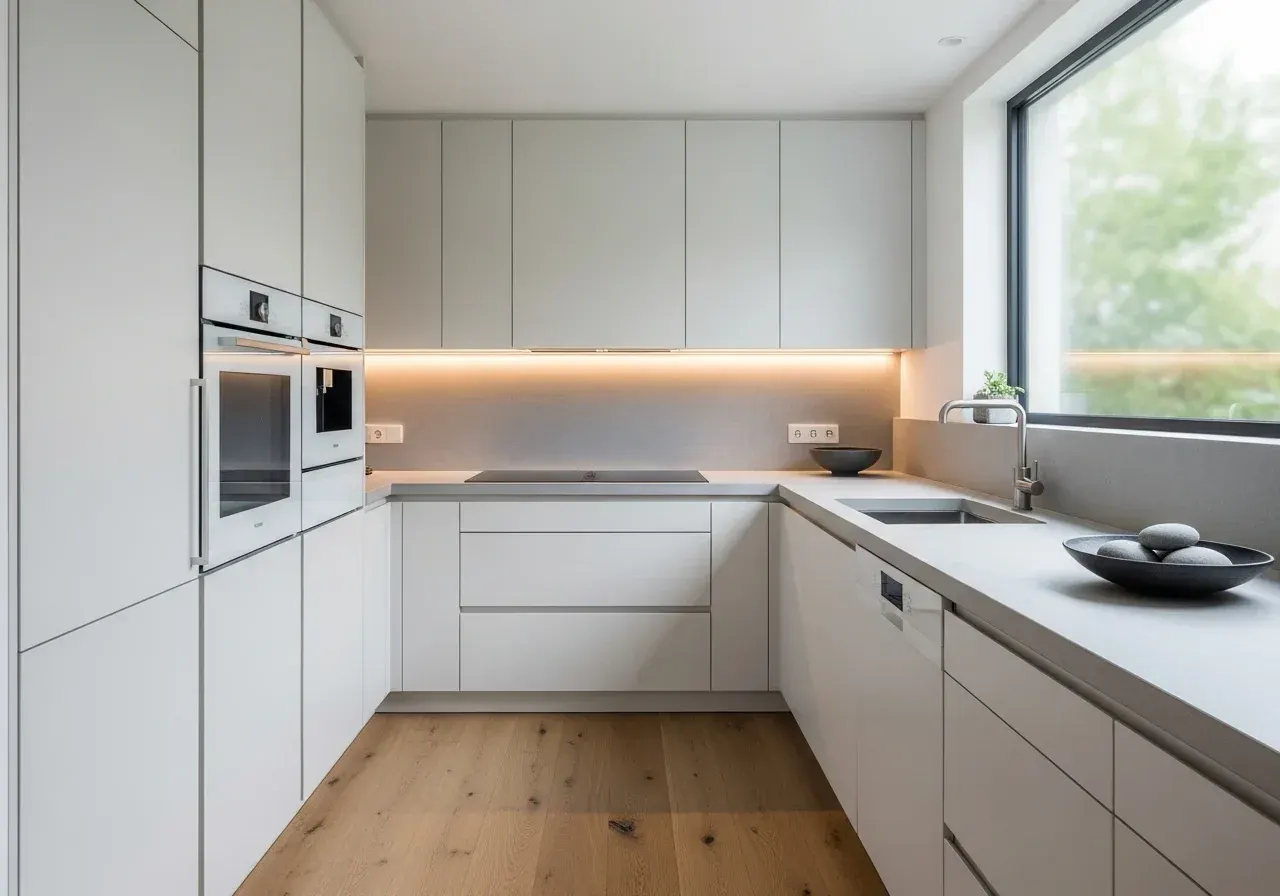
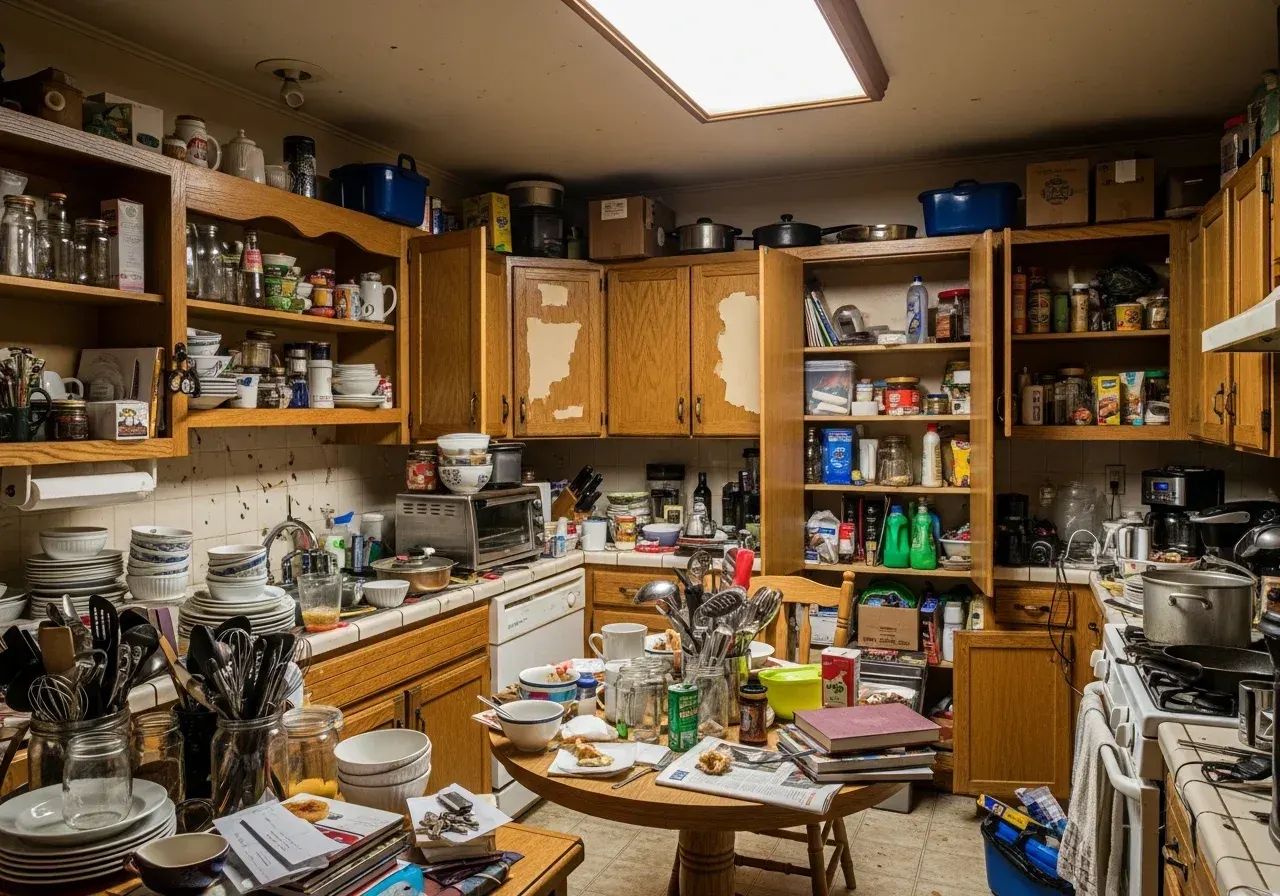
Download a kitchen preview and discuss the changes you like with a designer or installer, alongside actual measurements and a practical budget.
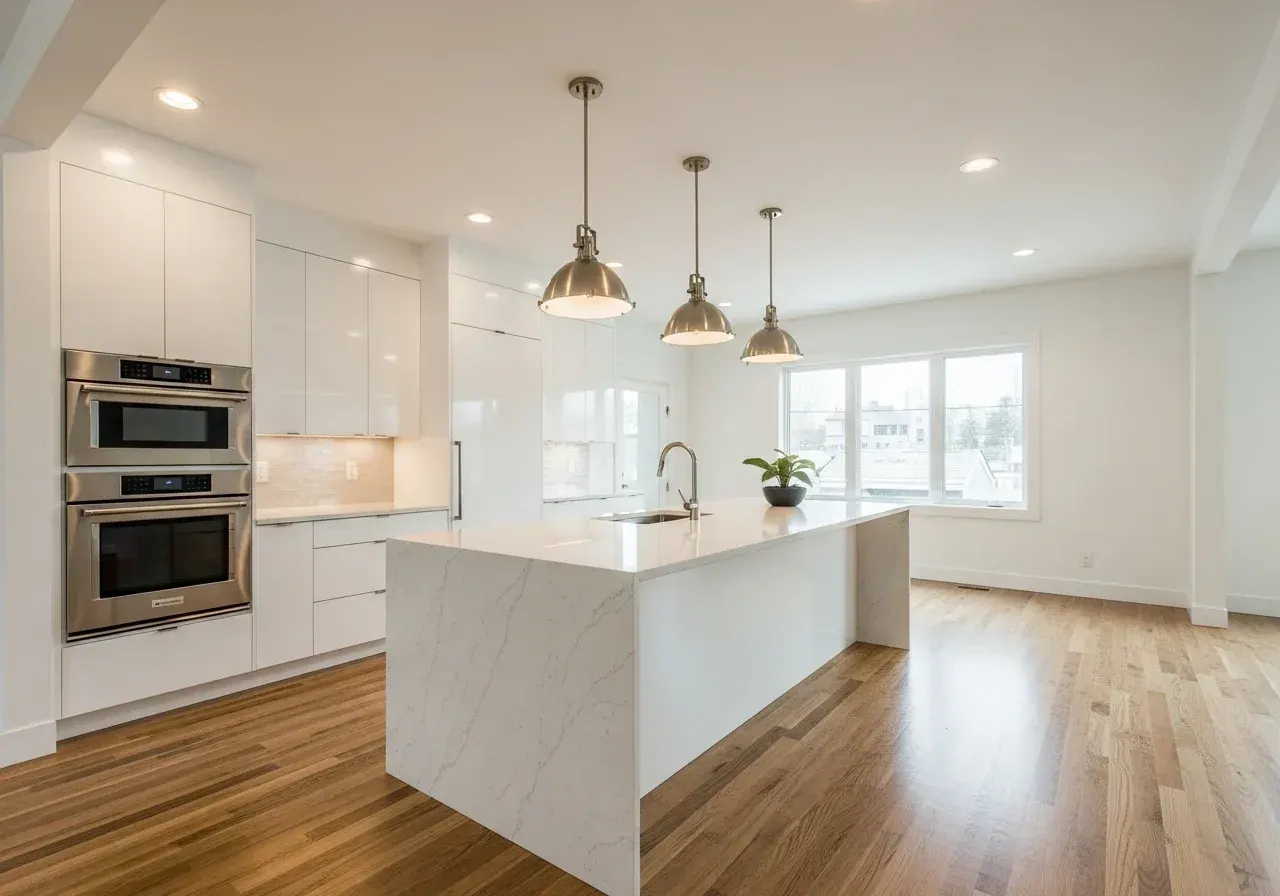
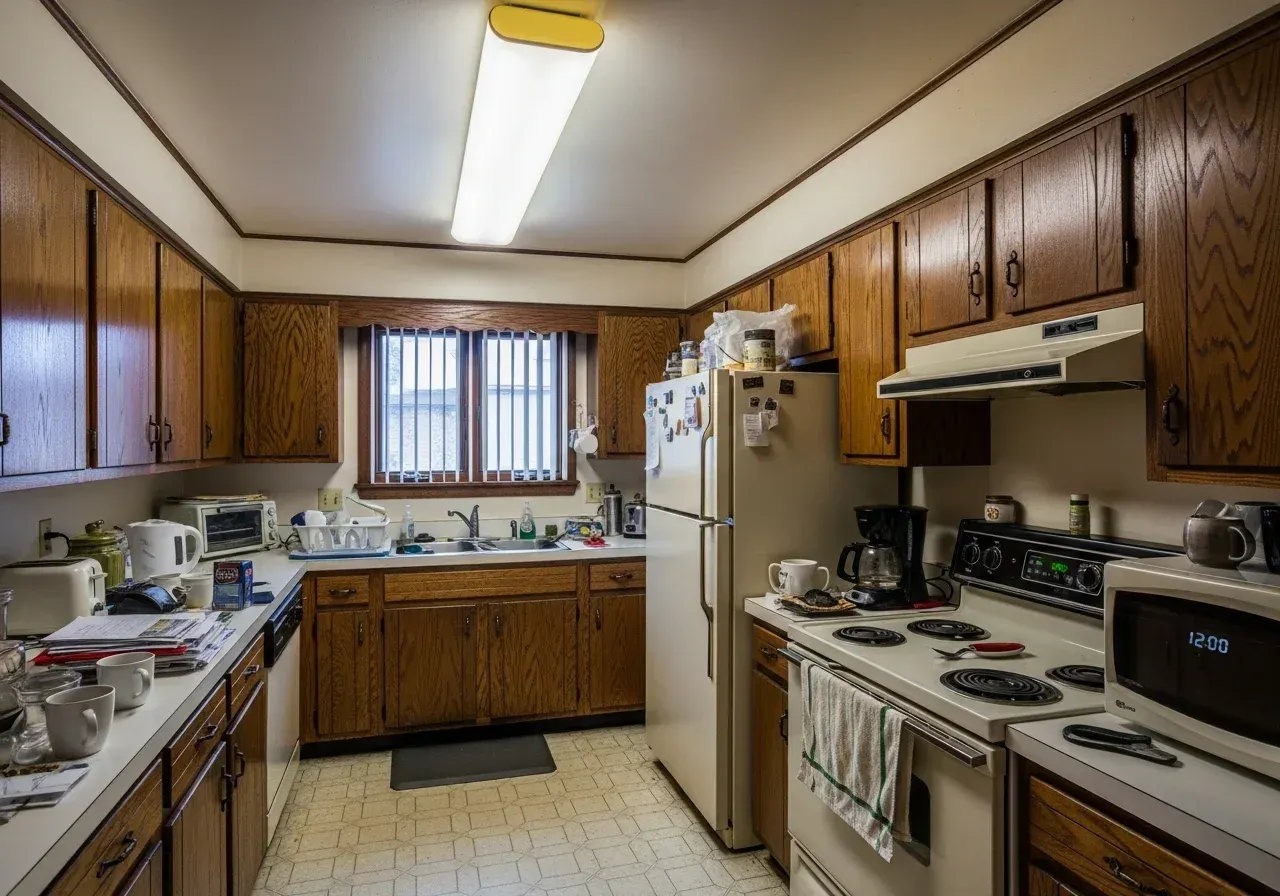
Design ideas
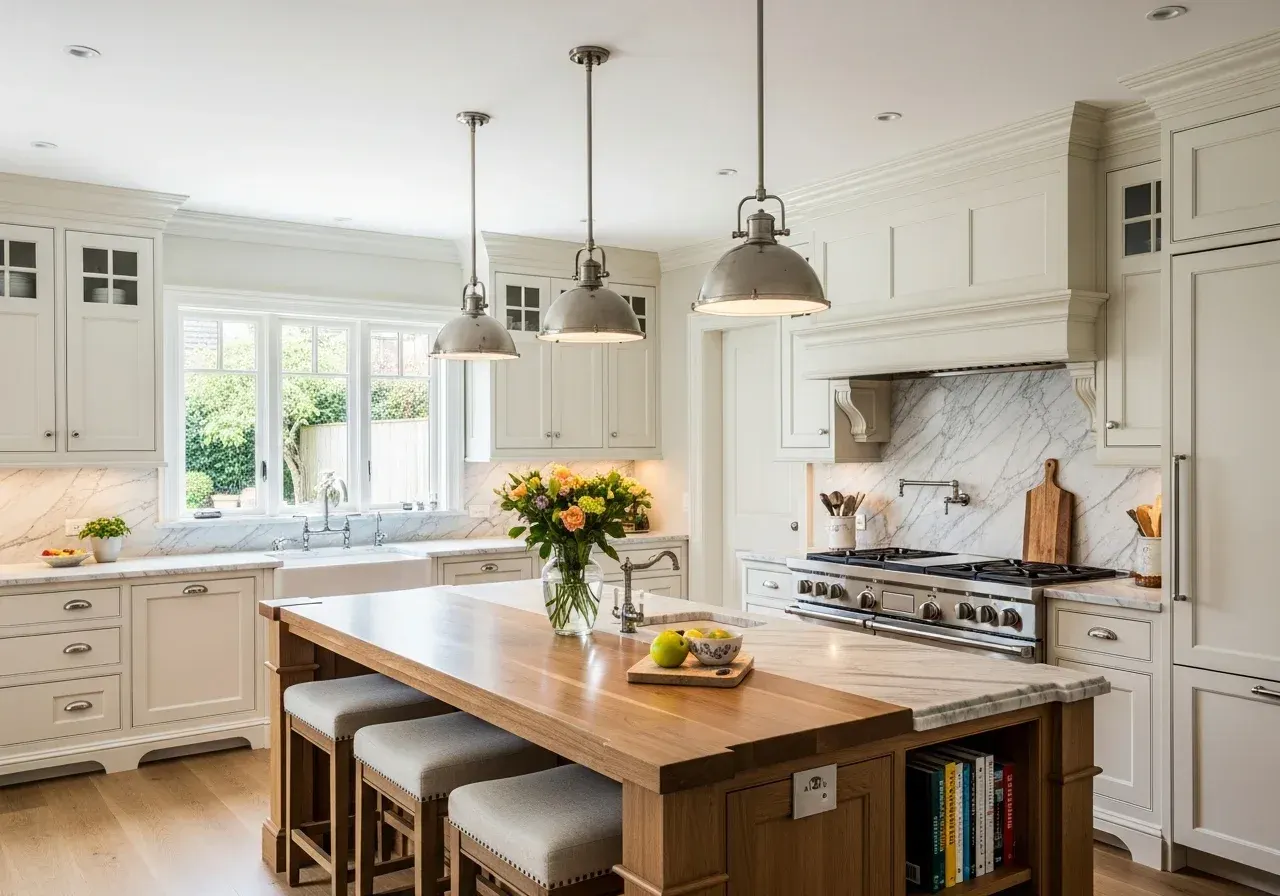
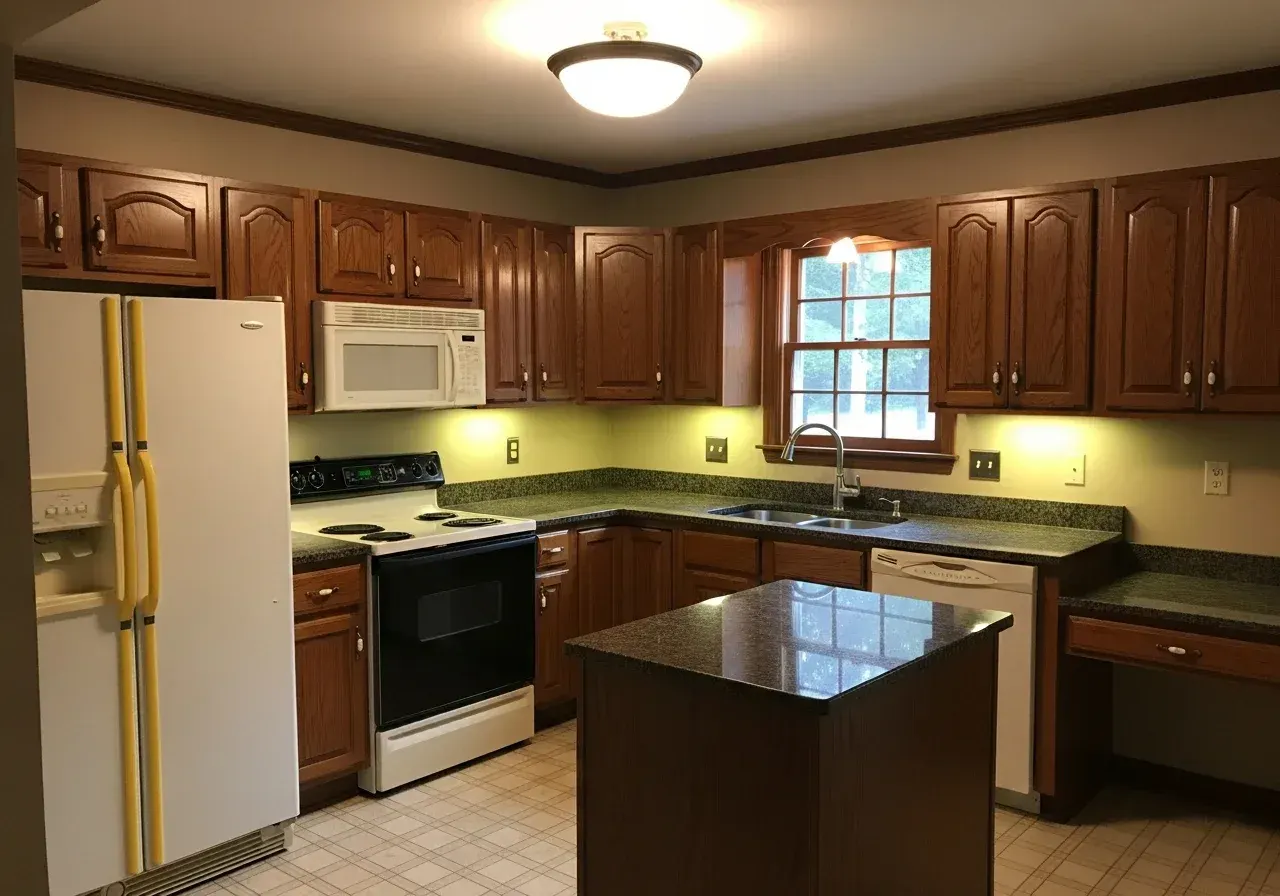
Compare light wood, deeper tones or painted cabinets in your kitchen photo, keeping the surrounding floor and lighting in view.
Choose monthly billing, an annual subscription or a one-time credit pack. Purchased credits never expire; review the payment total and the generation cost that fits how often you design.
Loading designs...
For first ideas and a fresh perspective on your space.
Billed monthly · auto-renews
Credits granted each paid month. Manage your subscription in Billing.
For regular redesigns and exploring more possibilities.
Billed monthly · auto-renews
Credits granted each paid month. Manage your subscription in Billing.
For larger projects, multiple rooms and client presentations.
Billed monthly · auto-renews
Credits granted each paid month. Manage your subscription in Billing.
Kitchen concepts do not verify plumbing, wiring, appliance clearances or construction dimensions.
Contact supportYes. Upload a clear kitchen photo, select a style and describe changes such as cabinet finishes, countertops or backsplash. Review the credits before generating, then compare the new design image with your original.
Describe the cabinet color or finish you want and the features you would like to retain. For a cabinet-front presentation, try the kitchen elevation generator. AI previews are useful for comparing looks, while final materials need physical samples.
Describe the change you want and what must stay the same. Use the tool’s controls for style, material, lighting or color, then add short, specific preferences. For example: warm oak cabinets, a pale stone worktop and a brighter backsplash.
Kitchen concepts do not verify plumbing, wiring, appliance clearances or construction dimensions.
AI generation uses 10 credits per 1K image or 15 per 2K image. Choose 1–4 images; the button shows the total before submission. Credits are reserved when a task is created and returned if that task fails. A new variation is a new paid task.
Yes. Choose 1–4 images per request and compare the completed results. You can adjust preferences and generate again, or use a completed result as the next reference. Each new request uses the credits shown on its button.
Time varies with image quality, the number of outputs and the generation service queue. The preview shows the task state; signed-in users can also revisit their tasks in My Projects. Avoid submitting the same request again while it is processing.
Completed results can be downloaded as images. Signed-in design tasks appear in My Projects, where you can review or continue them. The download is a visualization image, not an editable CAD file or a list of exact products.
Your designs are not automatically published in Explore. Uploaded images and preferences are processed by the generation service, and image files may be accessible through their storage links. Keep those links private and avoid uploading information you do not want processed. For help, use the feedback button or support@airoom-design.org.
The uploaded photo is used as a reference, and the generated design is a separate image. The original file on your device stays unchanged. Keep it to compare the design and review any details that the AI may reinterpret.
Bring a photo and compare a cabinet, counter or color direction before planning your remodel.